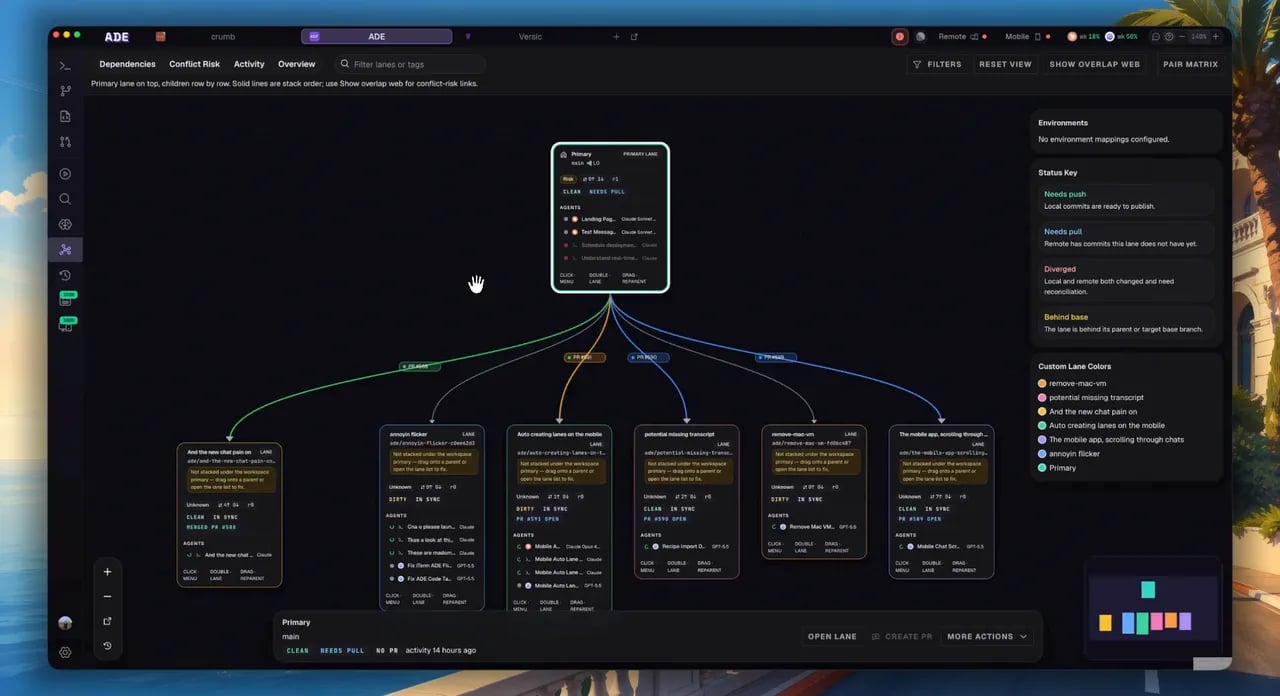
Screenshot: Full Workspace Graph view showing lane nodes in a hierarchical tree, color-coded by status, with PR nodes and merge simulation edge annotations.
Overview
The Workspace Graph is ADE’s spatial view of your entire project topology. Built on React Flow with an ELK.js hierarchical layout engine, it renders every Lane, PR, branch, and dependency relationship as a living graph that updates in real time. Where the Lanes list tells you what is happening, the Workspace Graph shows you how everything connects. At a glance you can see which lanes are stacked on top of each other, which branches have open PRs, where merge conflicts are likely to emerge, and how far ahead or behind each line of work has drifted.Topology at a Glance
See every lane, PR, and branch relationship in one view. Hierarchical layout auto-arranges nodes based on branch ancestry.
Merge Simulation
Run a background merge simulation using
git merge-tree. Predicted conflicts overlay as edge annotations before you touch a single branch.Drag-to-Reparent
Drag a lane node onto another to change its base branch. ADE previews the rebase before committing.
Opening the Graph
PressCmd+G from anywhere in ADE, or click the Graph icon (sixth icon) in the left sidebar. The graph opens as a full-screen tab in the main panel.
Understanding Nodes
Every entity in your project is represented as a node on the canvas.Lane Nodes
Lane Nodes
Lane nodes are the primary building blocks of the graph. Each node displays:
- Lane name and branch name
- Status badge: color-coded by current state
- Agent activity indicator: spinning pulse when an agent is actively working
- Pack freshness: a small indicator showing how fresh the lane’s context pack is
- Port allocation: the port number assigned to this lane (e.g.,
:3001) and its preview URL
| Color | Status | Meaning |
|---|---|---|
| Green | Idle | Lane is clean and ready — no active agent, no conflicts |
| Blue | Active | An agent is currently working in this lane |
| Orange | Conflict | Overlap with another lane’s changes detected |
| Red | Blocked | Lane is blocked — merge conflict, failing CI, or intervention required |
| Gray | Archived | Lane has been archived and is read-only |
PR Nodes
PR Nodes
Each lane with an open pull request has a PR node connected to it. PR nodes show:
- PR number and title (truncated)
- Review status: Draft, Open, Approved, Changes Requested, Needs Review
- CI check rollup (all green, some failing, or pending)
Branch Nodes
Branch Nodes
Orphaned branches — branches that exist in your repository but are not registered as a lane in ADE — appear as lighter-weight branch nodes. These are useful for importing stale remote branches or seeing the full repository topology.Right-click a branch node to convert it into a full Lane.
Understanding Edges
Edges represent relationships between nodes.- Dependency edges: Lane A’s base is Lane B — A is stacked on top of B. Shown as a solid directional line.
- PR target edges: A lane’s PR targets the main branch (or another lane’s branch). Shown as a dashed line connecting the PR node to its target.
- Merge simulation overlays: After running a simulation, edges gain annotation badges showing predicted merge outcome, conflict count, and risk level.
Screenshot: Close-up of lane nodes connected by edges with merge simulation annotations showing conflict counts and risk levels.
View Modes
The toolbar at the top of the graph provides three view modes. Switch between them without losing your canvas position.- Lane View
- PR View
- Conflict Heat Map
The default view. Every node shows its lane status, agent activity pulse, and pack freshness indicator. Edges show dependency relationships.This mode is optimized for day-to-day orchestration: you see which lanes are active, which need attention, and how work is stacked.
Merge Simulation
The merge simulation feature predicts what would happen if each lane’s branch were merged into the base branch, in sequence. ADE usesgit merge-tree under the hood — the same algorithm Git uses for real merges, but without touching any branch on disk.
Screenshot: Workspace Graph after running merge simulation showing edge annotation badges and simulation timestamp in the toolbar.
Running a Simulation
Click 'Simulate Merges'
Click the Simulate Merges button in the graph toolbar (or press
Cmd+Shift+M). ADE queues merge simulation jobs for all visible lanes.Wait for results
The simulation runs in the background. Individual edge annotations appear as each lane’s simulation completes — you do not need to wait for all lanes. Typically 2-5 seconds per lane depending on diff size.
Read the annotations
Each edge connecting a lane to its base gains an annotation badge:
- Clean: The merge would succeed with no conflicts
- N conflicts: The number of conflicting hunks detected
- Diverged: The branch has diverged significantly; a manual review is recommended
Simulating a Subset
To simulate only selected lanes rather than the entire graph, Shift+click to select a set of lane nodes first, then click Simulate Merges. ADE runs the simulation only on the selected set — useful for large projects where a full simulation takes longer.Drag-to-Reparent
You can change a lane’s base branch directly in the graph by dragging one lane node onto another.Start the drag
Click and hold a lane node, then slowly drag it toward the target lane (the new base you want). After a brief pause, the node enters drag-reparent mode — a blue outline appears on valid drop targets.
Preview the rebase
Drop the node onto the target lane. Before committing anything, ADE shows a Rebase Preview overlay:
- The new parent–child relationship as it would appear
- A summary of commits that will be rebased
- Any predicted conflicts in the rebase (from
git merge-tree)
Confirm or cancel
Click Confirm Rebase to proceed. ADE runs
git rebase --onto <new-base> in the lane’s worktree. Click Cancel to discard the change — no branches are touched.Batch Operations
Select multiple nodes to perform bulk operations across lanes. Selecting multiple nodes:- Shift+click: Add individual nodes to the selection
- Drag-select: Click and drag on empty canvas space to draw a selection rectangle
- Cmd+A: Select all visible nodes
| Operation | Description |
|---|---|
| Archive Selected | Archive all selected lanes (with a single confirmation dialog) |
| Simulate Merges | Run merge simulation on selected lanes only |
| Export Packs | Export context packs for all selected lanes as a .zip |
| Run Preflight | Run mission preflight checks across all selected lanes |
Navigation and Canvas Controls
Zoom
Scroll (trackpad pinch or mouse wheel) to zoom in and out.
Cmd+0 fits all nodes into view. Cmd++ and Cmd+- zoom in/out in steps.Pan
Click and drag on empty canvas space to pan. On a trackpad, two-finger scroll pans the canvas without zooming.
Mini-map
The mini-map in the bottom-right corner shows the full graph overview. Click anywhere on the mini-map to jump to that region. Click the mini-map header to collapse it.
Node Click
Clicking a lane node opens that lane’s detail in the Inspector panel without leaving the graph tab. Double-click to navigate fully into the lane.
Node Hover Tooltips
Hovering over a lane node for 500ms shows a tooltip with:- Branch name and last commit message
- Last commit author and timestamp
- Agent status (idle / running / completed)
- Conflict risk score (0–100)
- Pack freshness age
Graph Layout
ADE uses ELK.js (Eclipse Layout Kernel) to automatically arrange nodes in a hierarchical tree based on branch relationships. The main branch sits at the top; lanes forked from it appear below; lanes stacked on other lanes appear further down the hierarchy. Manual repositioning: Drag any node to a custom position. Node positions are persisted per-project — your layout survives restarts. To reset to the auto-layout, click Reset Layout in the graph toolbar.ELK layout runs automatically when new lanes are added or when lanes are archived. If you have manually positioned nodes, ADE attempts to preserve your positions and only moves newly-added nodes into available space.
Keyboard Shortcuts
| Shortcut | Action |
|---|---|
Cmd+G | Open the Workspace Graph |
Cmd+A | Select all nodes |
Cmd+0 | Fit all nodes into view |
Cmd+Shift+M | Run merge simulation |
Shift+Click | Add node to selection |
Escape | Deselect all / cancel drag |
Delete | Archive selected lane(s) (shows confirmation dialog) |
Cmd++ / Cmd+- | Zoom in / zoom out |
Edge Cases and Large Projects
Very large projects (50+ lanes)
With 50 or more lanes, ELK layout can take 2-3 seconds to compute. ADE shows a “Recalculating layout…” indicator during this time. For very large graphs, consider using lane groups (configure in
ade.yaml) to cluster related lanes and reduce visual noise.Merge simulation on 50+ lanes runs all jobs in parallel but may take 30-60 seconds for large repositories with deep histories.Disconnected branches
Disconnected branches
Branches with no relationship to your base branch (e.g., orphan branches like
gh-pages) appear as isolated nodes in the upper-right quadrant of the graph. They are not included in merge simulations by default.Simulation on branches with merge commits
Simulation on branches with merge commits
git merge-tree works best on linear histories. On branches with merge commits, ADE uses the branch tip as the simulation target. The simulation may report false negatives (fewer conflicts than will actually occur) in complex octopus-merge scenarios.Graph not updating
Graph not updating
If the graph appears stale, press
Cmd+R to force a full refresh from the database. This is rare — the graph subscribes to live IPC events from the main process. If the issue persists, check that the ADE main process is running and the IPC bridge is healthy (visible in Settings → Diagnostics).Related Pages
Lanes
Understand lane types, status, and lifecycle before diving into the graph.
Conflicts
Deep dive into ADE’s conflict detection and resolution tools.
Pull Requests
Manage PRs from within ADE, including review status and merge workflows.
Missions
Launch multi-step AI missions across lanes and track them from the graph.