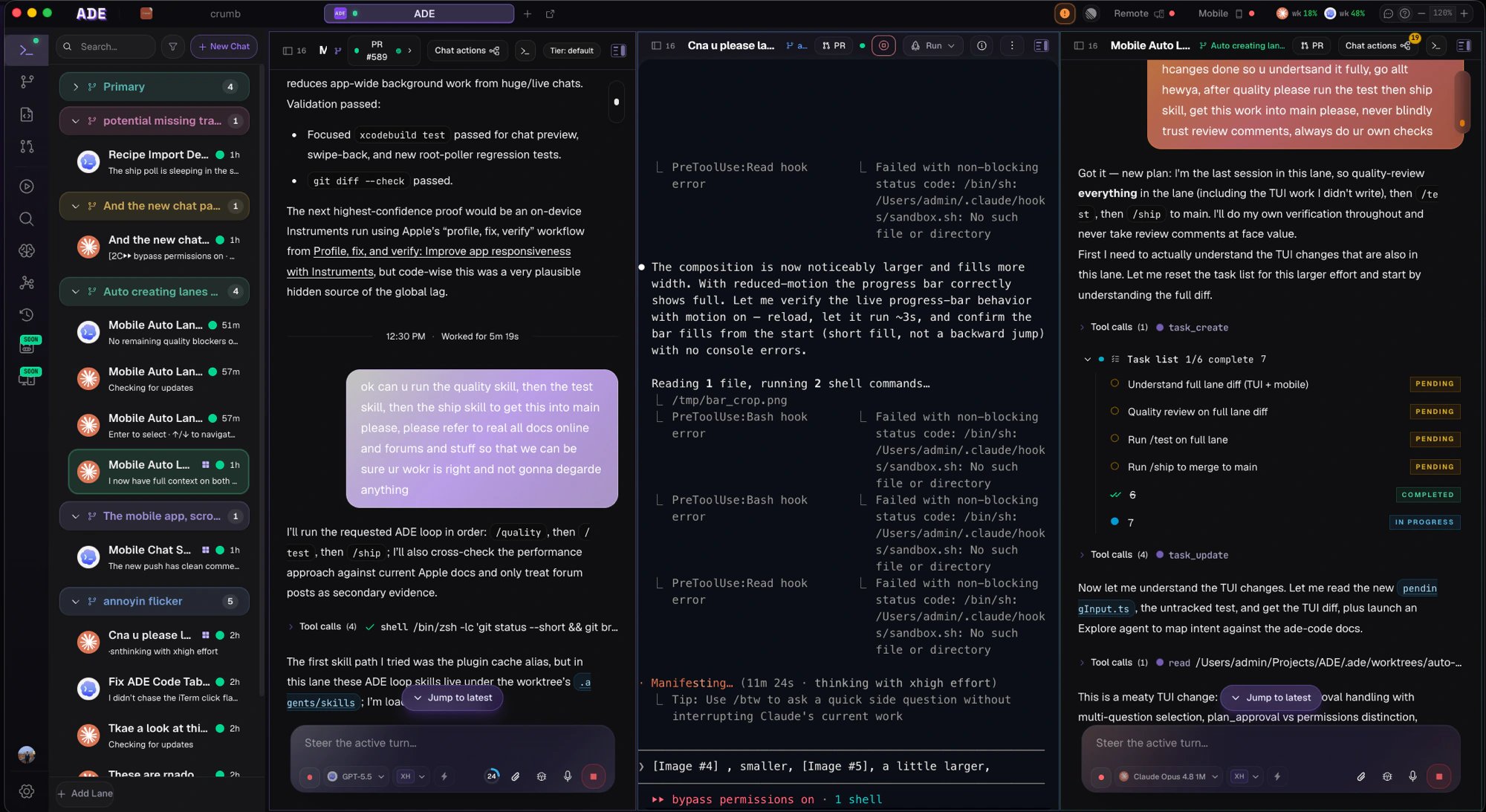
Agent chat on the desktop — transcript, streaming tool calls, and live diffs in one place.
Lane-scoped by design
Every chat binds to a lane — a git worktree and branch — and that worktree is the agent’s boundary. The lane’s branch and working directory are injected into the agent’s context, so it always knows where it is. File edits and mutating commands stay inside the lane’s worktree; the agent can read outside it for context when it needs to, but it writes only inside the lane unless ADE relaunches it elsewhere. Because work is isolated per lane, several agents can run in the same repository at once without writing over each other or your primary checkout.Start a chat or a CLI session
From an empty Work composer you can launch into an existing lane, or let ADE auto-create a worktree from your prompt. In a lane you can start either an agent chat (the streaming, tool-aware surface) or a provider CLI session (the provider’s own terminal client) — both run scoped to the lane’s worktree.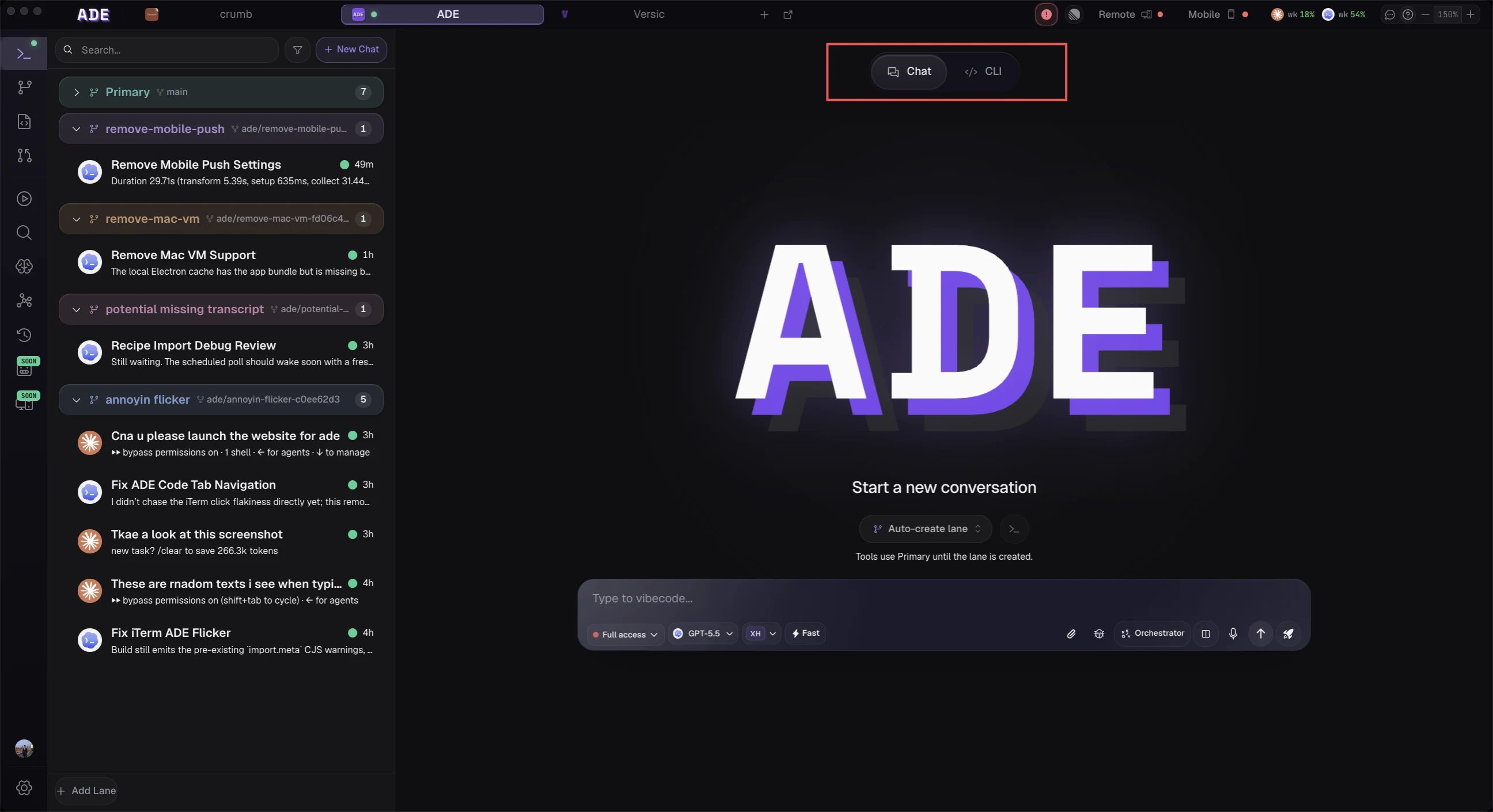
Start an agent chat or a provider CLI session in a lane.
Pick a provider and model per session
ADE runs five coding agents against the same lane. Pick the provider and model that fits the task when you start the session, and switch within the same family mid-session when you want a different model.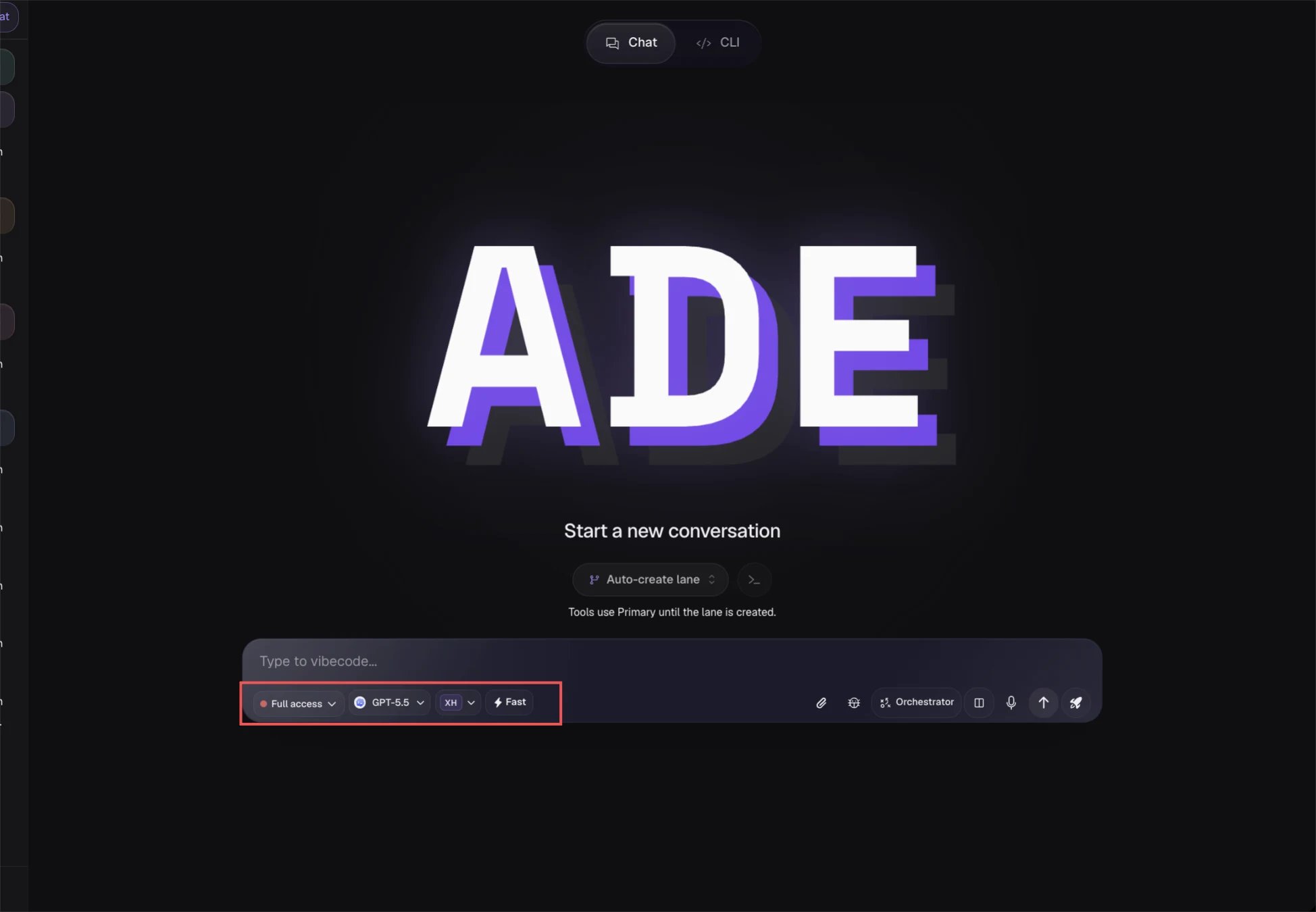
Pick the provider and model for the session.
Add a provider key or subscription in Settings before its models appear in the picker. Claude, Codex, Cursor, and Droid can also be installed and signed in from an inline card in the chat when their CLI is missing or unauthenticated.
Set a Codex goal
Codex chats can keep an explicit goal on the session, so a long-running task has a visible objective while the transcript, tool calls, and follow-up prompts continue normally. Set, update, complete, or clear the goal from the chat UI when the work changes.Follow long-running work
ADE keeps background chat activity visible instead of hiding it inside provider logs. Claude wake, cron, scheduled-work, and background-stream updates appear as activity in the chat timeline and Chat Info surfaces; Codex and Cursor recovery events surface as structured status or error cards when a runtime needs attention. When a provider compacts context, ADE shows a compaction marker in the transcript and keeps the follow-up turn attached to the same session. You can keep working from the same chat, inspect the earlier turn history, or start a fresh lane-scoped chat with a summary when the task needs a clean reset.See every tool call
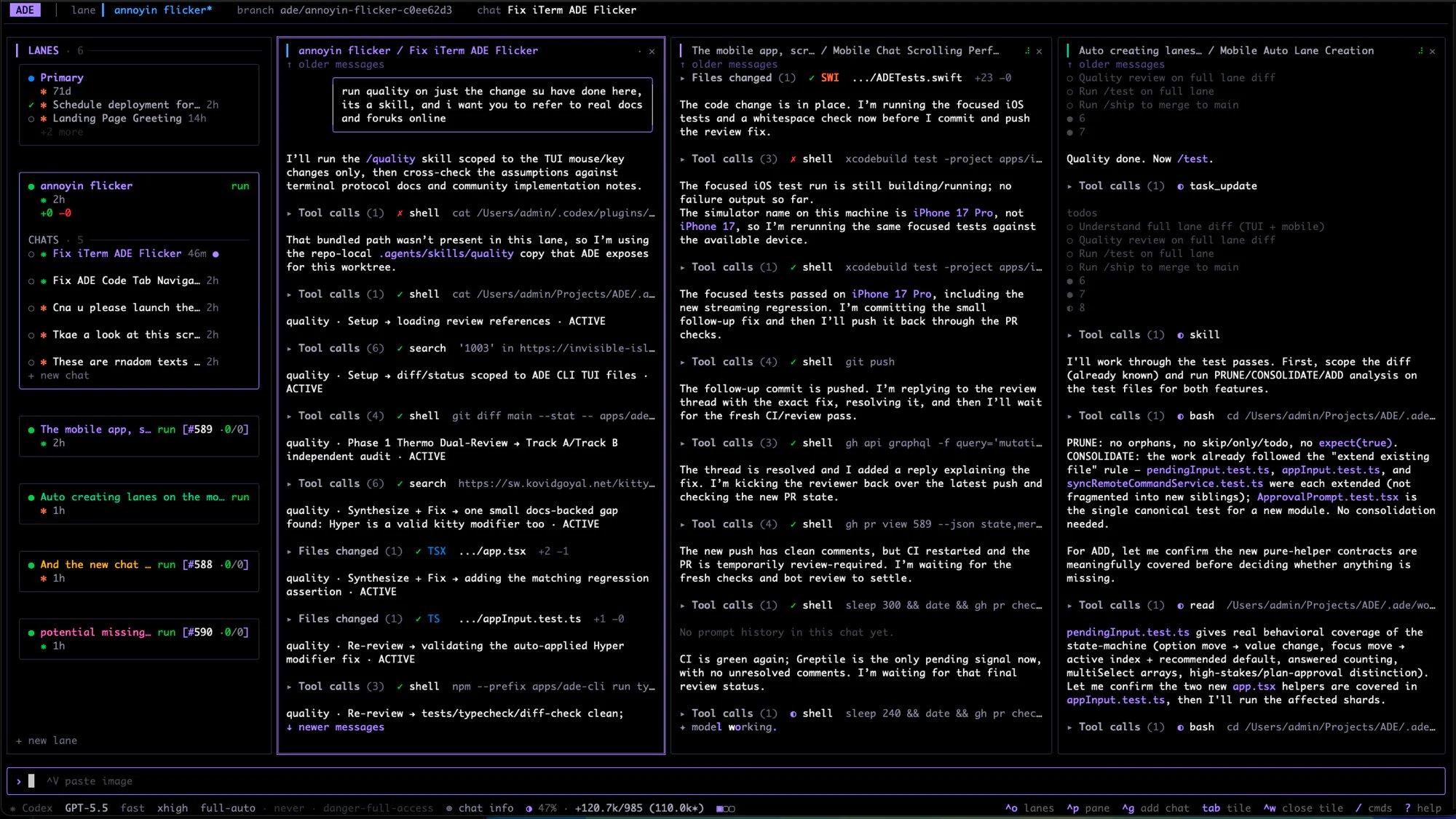
Chat is not a black box. As the agent works, ADE streams each step into the transcript so you can follow — and stop — what it does:- Streaming assistant text and reasoning.
- Tool calls and shell commands, grouped into an expandable work log so you can read each file edit or command and its result.
- File changes mirrored into Files as a diff, with a per-turn diff summary.
- Questions when the agent needs a decision instead of guessing — the composer locks until you answer or decline.
- Goals, scheduled-work updates, context compaction, runtime recovery, and provider-auth cards when the session needs a stateful decision.
The same chat, every surface
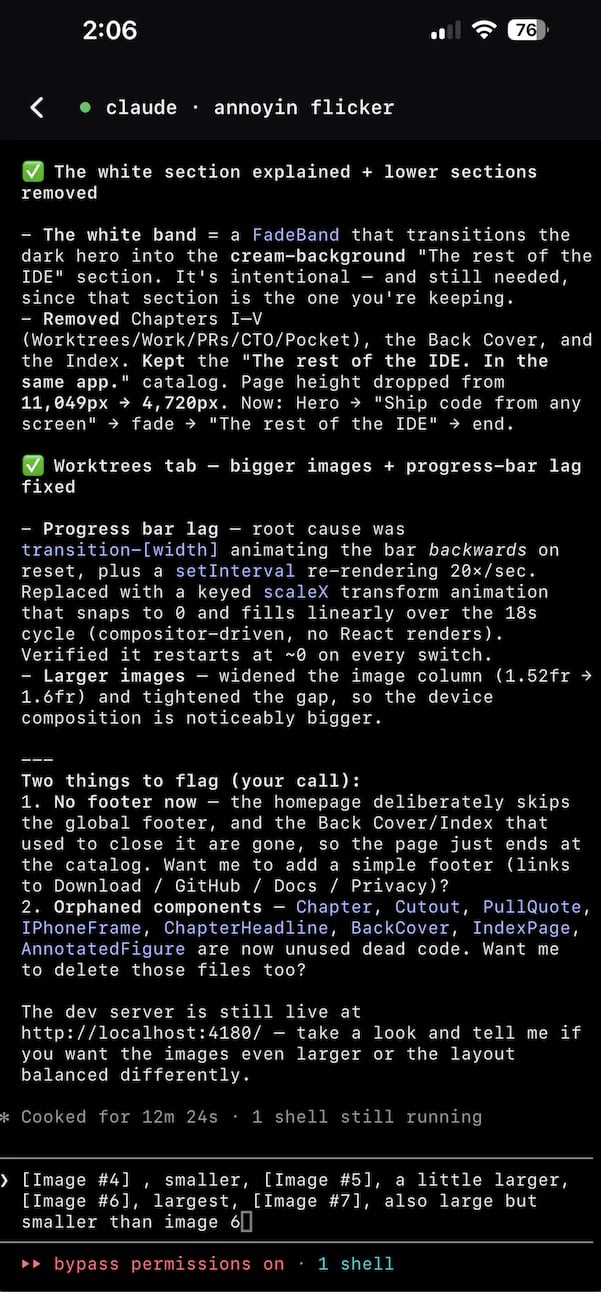
Chat sessions are owned by the machine’s runtime, not by any one client. A chat you start on the desktop is the same conversation in the terminal and on your phone — the renderer,ade code, and the iOS app are all clients of the same session.
Provider-native sessions can also be recovered into ADE when possible. Claude and Codex history imports seed a normal ADE chat, preserving provenance while keeping future turns lane-scoped and visible in the same transcript UI.
- Desktop
- Terminal
- iOS
Agent chat in the macOS app.
Chat capabilities
The full catalog of what a chat agent can do inside a lane.
Grid & multi-model
Run several agents at once and compare their work side by side.