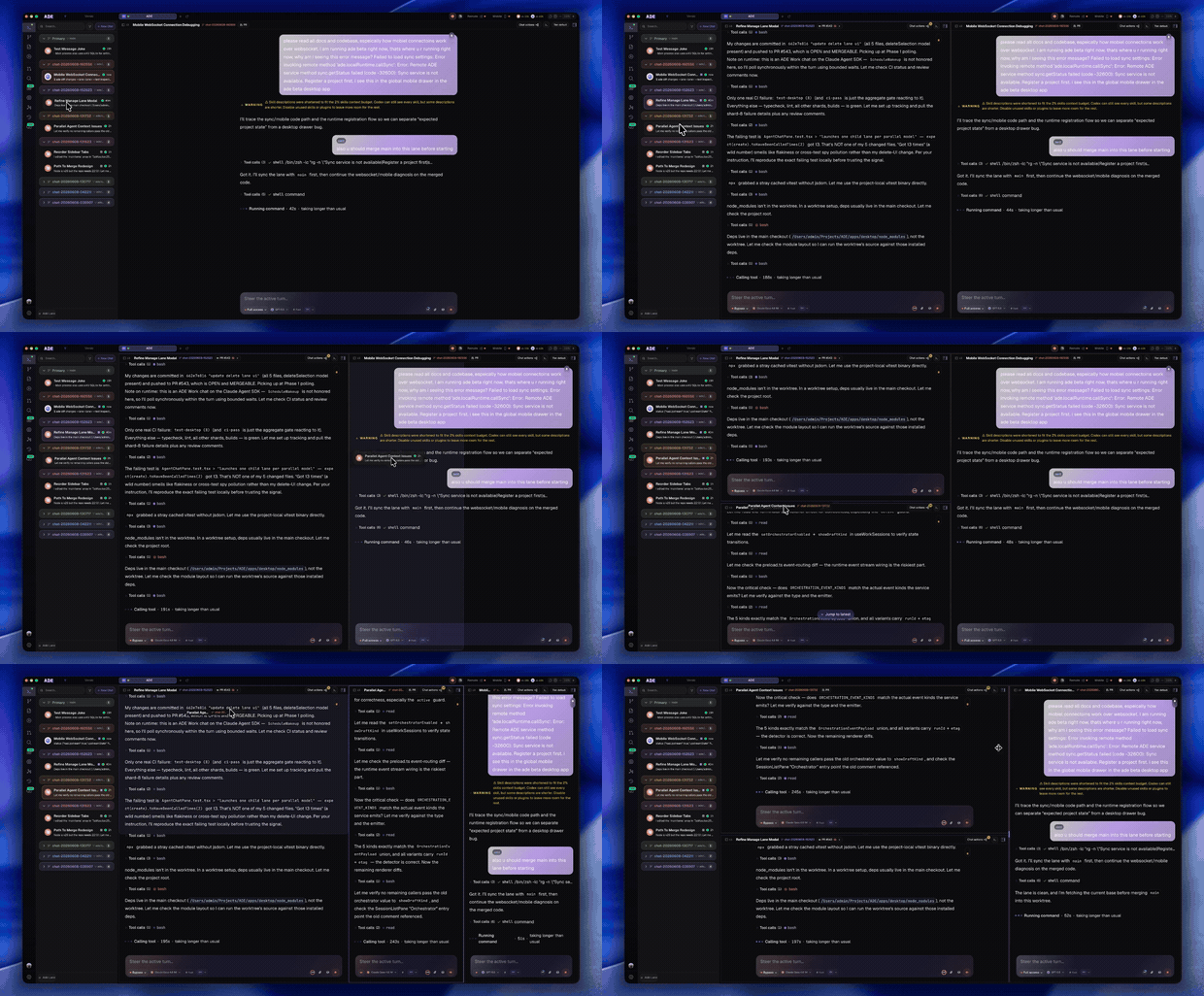
1. Plan Your Parallel Work
Before launching agents, decide how to split the work:- Independent features — each agent works on a separate feature with minimal file overlap. Low conflict risk.
- Related changes — agents work on related features that touch some of the same files. Medium conflict risk — ADE’s conflict prediction helps here.
- Stacked work — agents work on a dependency chain (see Stacked PR Workflows). Coordination is automatic.
2. Create Lanes
Create a lane for each parallel workstream.Create lanes
Click New Lane for each workstream. Give each lane a descriptive branch name (e.g.,
feature/payment-api, feature/user-dashboard, fix/auth-redirect).3. Assign Agents
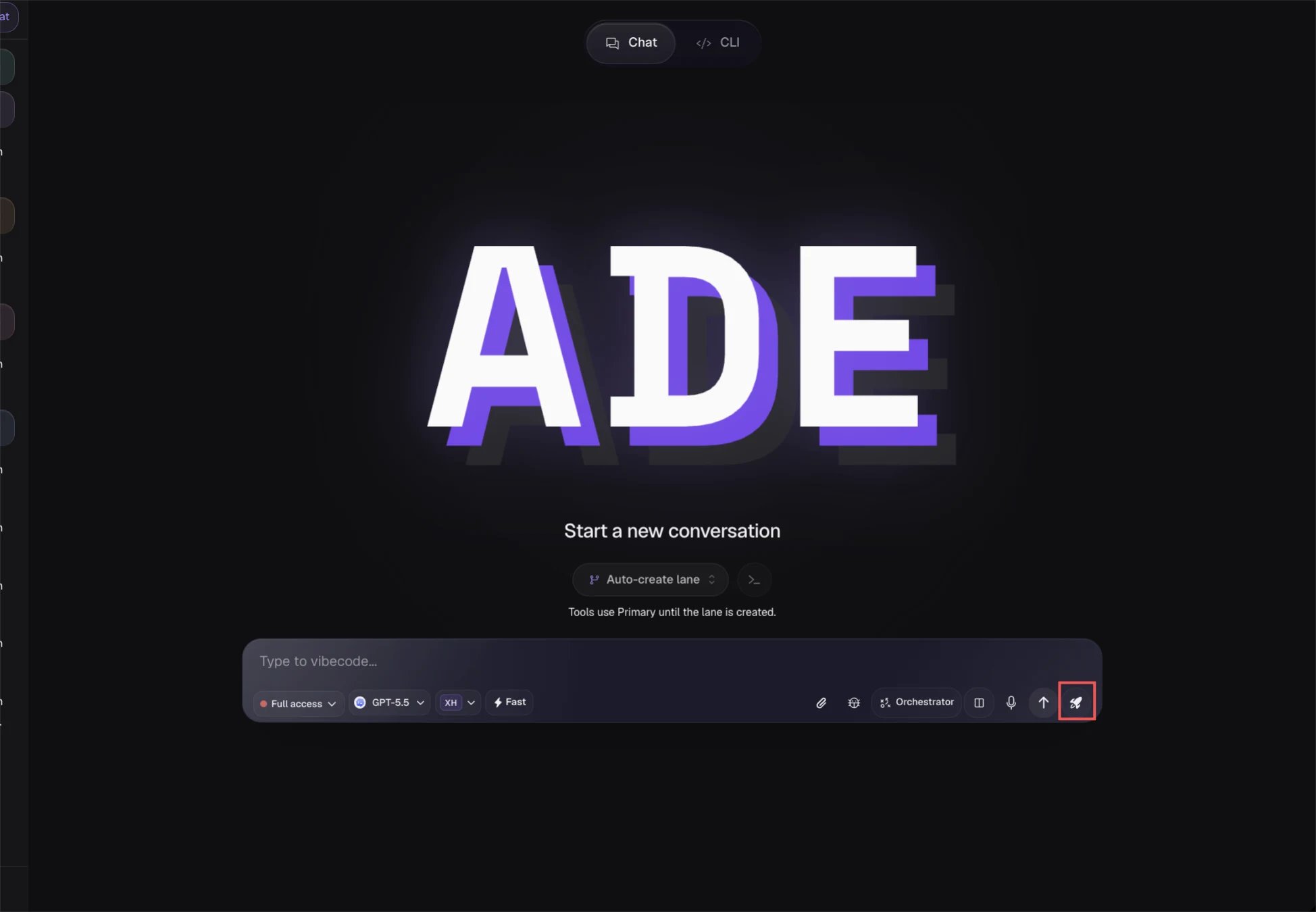
Launch an agent in each lane. There are several ways to do this:From the Lane panel
From the Lane panel
Select a lane, then click Start Agent. Choose the agent type (Claude CLI, Codex CLI, or Unified) and provide a prompt describing the task.
From the CTO
From the CTO
Ask the CTO to delegate work. It will create lanes and spawn workers automatically based on your instructions.
Via a Mission
Via a Mission
Create a mission with a plan that has parallel steps. The mission coordinator spawns workers into separate lanes and manages them.
Via Automations
Via Automations
Set up automation rules that spawn agents in response to triggers. Each rule can target a specific lane or create a new one.
4. Monitor from the Workspace Graph
The Workspace Graph is the best view for monitoring multiple agents simultaneously. Navigate to Workspace Graph in the sidebar. You will see:- Lane nodes — each lane appears as a node on the graph, color-coded by status
- Agent activity indicators — lanes with running agents show a live activity pulse
- Branch relationships — edges connect lanes to their base branches
- Conflict warnings — overlapping file indicators appear between lane pairs with predicted conflicts
5. Track Agent Output
While agents run, you can inspect their work from several views:| View | What it shows |
|---|---|
| Lane Terminals | Live terminal output for each agent session |
| Agent Chat | The agent’s reasoning and tool calls in chat format |
| History | Timeline of all events across all lanes |
| Missions > Run | Step-by-step progress if agents were launched via a mission |
6. Handle Conflicts
When multiple agents modify overlapping files, ADE detects the conflict risk:Conflict prediction
ADE periodically runs merge simulations between active lanes. Predicted conflicts appear in the Conflicts view and as warning badges on the Workspace Graph.
Review the overlap
Open the Conflicts view to see which files overlap and which lanes are involved. ADE shows the specific file regions at risk.
Resolve or defer
You have several options:
- Pause one agent — let the other finish first, then rebase
- AI resolution — let ADE’s conflict resolver agent propose a merge
- Manual resolution — resolve the conflict yourself in a terminal session
- Defer — continue working and resolve later (the conflict may resolve itself if agents diverge)
Conflict prediction runs automatically when the Job Engine is active. In development mode, you may need to enable it with
ADE_ENABLE_CONFLICT_PREDICTION=1.7. Collect Results
As agents complete their work:- Each lane has its changes committed and ready for PR
- Mission artifacts (if applicable) are collected in the Artifacts tab
- The CTO can review results across all lanes and post summaries
Scaling Guidelines
| Agents | Recommendation |
|---|---|
| 1-3 | Fine for any machine. Monitor via Lanes panel. |
| 4-8 | Use the Workspace Graph for overview. Set budget caps per agent. |
| 8+ | Use missions with parallelism caps. Monitor total token spend in Settings > Usage. |
Next Steps
Stacked PR Workflows
Organize parallel lanes into stacked PR chains for dependent work.
CTO + Linear
Let the CTO automatically delegate work to parallel agents from Linear issues.