
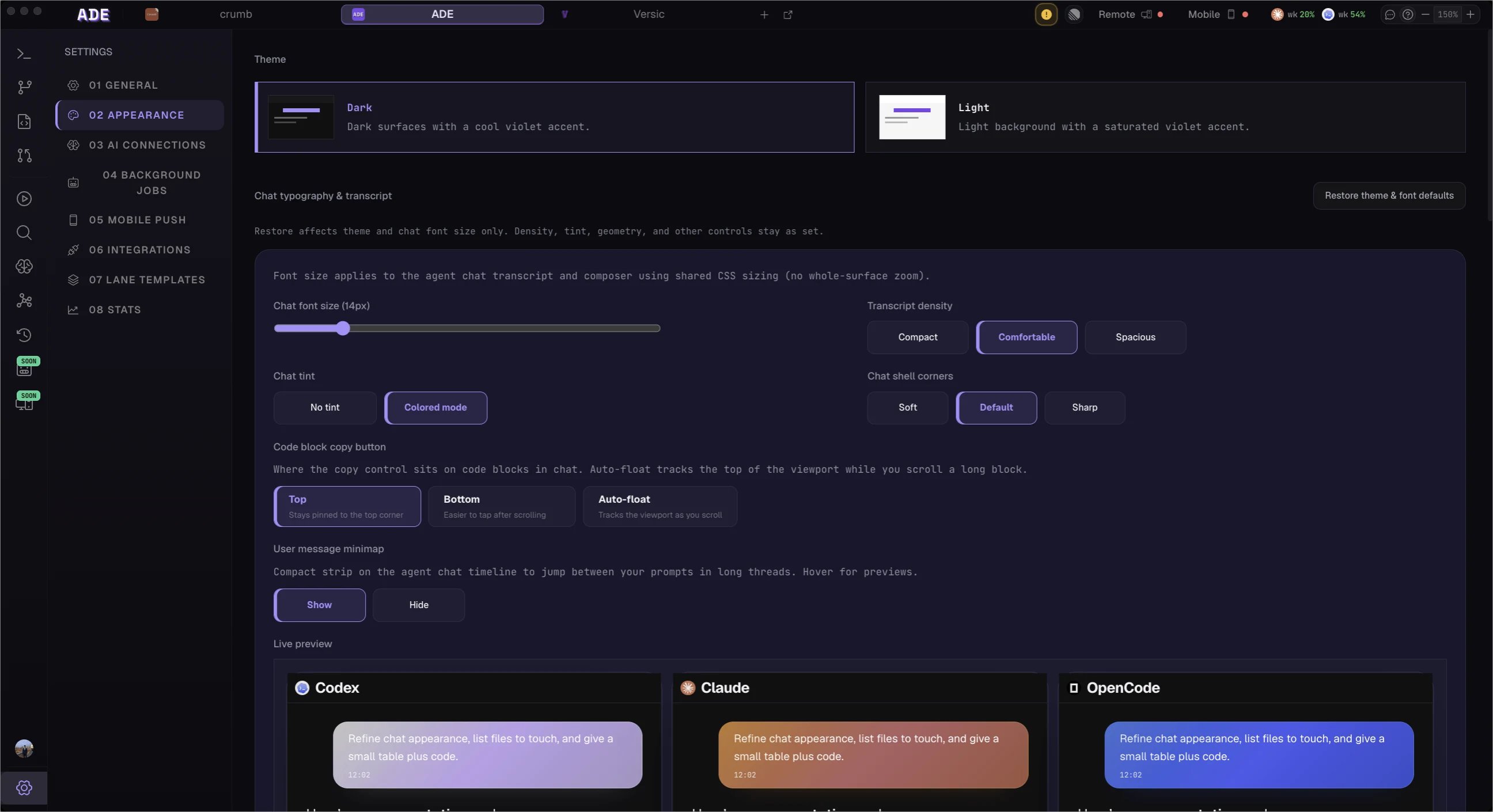
**Screenshot: The Settings page with the left navigation sidebar visible, showing all section categories listed (General, AI Routing, Context, Budget & Usage, AI Providers, Integrations, Computer Use, CTO, Automations, Permissions, Notifications, Developer). The “General” section is active and its content is shown on the right.

Opening Settings

Access Settings from anywhere in ADE:
  • Keyboard shortcut: Cmd+,
  • Sidebar: Click the gear icon (⚙) at the bottom of the left sidebar
  • Menu bar: ADE → Preferences
Settings are organized into twelve sections in the left navigation panel. Changes in most sections take effect immediately — no restart required. Exceptions are noted in the relevant section below.

General

Basic project identity and application-level preferences.
SettingDescriptionDefault
Project nameDisplay name shown in ADE’s title barDerived from repository folder name
Project descriptionShort description shown on Project HomeEmpty
Default working directoryRoot directory for terminal sessionsRepository root
ThemeUI color schemeDefault Dark
Auto-updateWhether ADE checks for and installs updates automaticallyOn
Beta channelOpt in to receive pre-release buildsOff
TelemetryAnonymous usage metrics (no PII, no source code)Opt-in prompt on first launch

Themes

ADE ships with six themes selectable without restart:

Default Dark

ADE’s standard dark theme — dark greys with green accent colors.

Default Light

Light mode with the same green accent palette.

Monokai

High-contrast dark theme with the classic Monokai color palette.

Solarized Dark

Warm dark tones from the Solarized palette.

Solarized Light

Warm light tones from the Solarized palette.

One Dark

Atom-inspired dark theme with cool grey tones.

AI Routing

Control which model each agent role uses, and how ADE manages context windows.

Per-Role Model Overrides

ADE’s default model applies to all agents unless you set role-specific overrides. Role overrides let you optimize cost and quality by matching model capability to task complexity.
RoleDescriptionRecommended Model
OrchestratorMission planning and worker coordinationclaude-opus-4-6
WorkerMission execution tasksclaude-sonnet-4-6
ValidatorMission validation and reviewclaude-sonnet-4-6
AutomationEvent-driven automation runsclaude-haiku-4-5
ChatInteractive chat sessionsclaude-sonnet-4-6
CTOProject-level memory and delegationclaude-opus-4-6
Routing automation runs to claude-haiku-4-5 while keeping claude-opus-4-6 for mission planning is the single most impactful cost optimization for users running frequent automations. Most PR-review and routine triage tasks do not require Opus-level reasoning.

Context Management

SettingDescriptionDefault
Auto-compaction thresholdPercentage of context window used before compaction triggers70%
Compaction strategysummarize (quality-preserving) or truncate (fastest)summarize
Preserve system promptAlways keep the system prompt in full during compactionOn
Context warning thresholdShow a usage indicator in the chat header above this percentage60%

Response Streaming

SettingDescriptionDefault
Stream responsesShow tokens as they arrive (vs. waiting for full response)On
Streaming buffer delayMilliseconds between UI render updates during streaming16ms

Context

Settings for context doc generation and refresh behavior. Context docs (PRD, architecture overview) are synthesized from your codebase and injected into agent sessions as project-level context.
SettingDescriptionDefault
Generation modelAI model used to generate context docsclaude-sonnet-4-6
Reasoning effortDepth of analysis during generationDefault (model decides)
Auto-refresh eventsWhich project events trigger automatic doc regenerationOn PR create, On mission start

Auto-Refresh Events

Toggle individual events that trigger a context doc regeneration:
  • On session end — regenerate when a terminal/agent session ends
  • On commit — regenerate when a commit is created
  • On PR create — regenerate when a pull request is created or updated
  • On PR land — regenerate when a pull request is merged
  • On mission start — regenerate when a mission launches
  • On mission end — regenerate when a mission completes
  • On lane create — regenerate when a new lane is created
Preferences are saved automatically and persist across sessions.

Budget & Usage

Track and control AI spending across all agents and providers.
**Screenshot: The Budget & Usage settings panel showing: a “Current Month” spending summary card (34.20of34.20 of 100.00 monthly cap), a stacked bar chart breaking down spend by provider (Anthropic, OpenAI), and below it a table showing spend by lane for the last 7 days.

Budget Caps

SettingDescriptionDefault
Per-session capMaximum USD per chat session$1.00
Per-mission capMaximum USD across all workers in a single mission$10.00
Per-automation capMaximum USD per automation trigger$0.50
Monthly total capHard ceiling across all providers, agents, and sessions$100.00
The monthly cap is a hard stop. Once reached, all agent activity (chat, missions, automations, CTO heartbeats) pauses until either the cap is raised in Settings → Budget or the calendar month rolls over. ADE sends a notification when you reach 80% and again at 100% of the monthly cap.

Alert Thresholds

Configure when ADE notifies you of approaching budget limits:
  • Session warning: Alert at 80% of per-session cap (default on)
  • Mission warning: Alert at 80% of per-mission cap (default on)
  • Monthly warning: Alert at 80% and 95% of monthly cap (default on)

Usage Graphs

The usage panel shows three graph views, each switchable between bar and line charts:
  • Daily: Per-day spend for the last 30 days, broken down by provider
  • Weekly: Per-week totals for the last 12 weeks, broken down by agent role
  • Monthly: Per-month totals for the last 12 months, broken down by lane
Click any bar segment to drill into the individual sessions or missions that contributed to that spend.

AI Providers

Manage API keys for all configured providers. This section is a GUI layer over local.secret.yaml. Changes saved here write directly to that file. For full provider setup instructions, see AI Providers.
ActionHow
Add API keyClick Add Key next to the provider, enter the key value
Rotate keyClick Rotate — enter the new key. ADE swaps the key in memory immediately.
Revoke keyClick Revoke — ADE removes the key from local.secret.yaml and memory. Agents using that provider will fail until a new key is added.
Test connectionClick Test Connection — ADE sends a minimal request and reports success or the error message
Set default modelDropdown per provider — writes to ade.yaml (requires SHA re-approval if other fields changed)

Integrations

GitHub

ADE uses GitHub OAuth for PR management. This is distinct from the GitHub MCP server (which uses a token).
SettingDescription
OAuth connectionConnect or disconnect your GitHub account
Organization accessManage which GitHub orgs ADE can access
Default branchBranch ADE opens PRs against (default: main)
PR auto-linkAutomatically link PRs to ADE missions and lanes when the PR branch matches a lane
Draft PRs by defaultCreate PRs as drafts until explicitly marked ready

Linear

ADE connects to Linear for bidirectional issue sync. Configure in Settings → Integrations → Linear.
SettingDescription
API keyLinear API key (stored in local.secret.yaml)
Sync directionbidirectional, read-only (ADE reads Linear), disabled
Default teamLinear team for issue creation
Label mappingsMap ADE mission states to Linear issue labels
Issue → Lane auto-createAutomatically create a lane when a Linear issue is assigned to you

External MCP

Shortcut to the External MCP server management panel. For full documentation, see MCP Servers.

Computer Use

Configure which computer-use backend ADE uses for agent-driven browser and desktop automation.
SettingDescriptionDefault
Backendghost-os, agent-browser, or ade-localade-local
Connection URLURL for Ghost OS or remote backends
Auto-connect on launchConnect to the backend when ADE startsOn
Default proof requirementsWhich action types require screenshot proofScreenshots for all write actions
Proof storage locationWhere captured screenshots and traces are saved.ade/artifacts/computer-use/
The capability matrix at the bottom of this section shows which features each backend supports (screenshots, video recording, DOM access, file download interception, etc.). For full computer use documentation, see Computer Use.

CTO

Settings for the always-on CTO agent that monitors your project and manages workers.
SettingDescriptionDefault
CTO enabledEnable or disable the CTO agent entirelyOn
Heartbeat intervalHow often the CTO runs its check-in loop15 minutes
Default worker budgetUSD budget allocated to each worker the CTO spawns$2.00
Memory retentionHow long to retain project memory entries before summarizing30 days
Linear syncbidirectional, read-only, or disabledbidirectional
Auto-delegationAllow CTO to spawn workers without asking for approvalOff
Auto-delegation thresholdOnly auto-delegate tasks with estimated cost below this value$1.00
The heartbeat interval controls how frequently the CTO agent wakes up to review open issues, pending missions, and project health. A shorter interval (e.g., 1 minute) gives more responsive CTO behavior but increases AI spend. For most projects, 15 minutes is the right balance.

Automations

Global controls for the automation system.
SettingDescriptionDefault
Automations enabledMaster switch for all automation rulesOn
View all automationsLink to the Automations tab

Permissions

High-level controls for what agents are allowed to do. For the full security model, see Permissions.

File Path Restrictions

Configure which filesystem paths agents can read and write:
  • Allowed paths: Glob patterns. Agents can only access files matching these patterns. Empty = all paths accessible (within the worktree).
  • Blocked paths: Agents can never access files matching these patterns, regardless of allowedPaths.

Terminal Command Policy

SettingDescription
Command allow listAgents may only run commands matching these patterns. Empty = all commands allowed.
Command block listAgents may never run commands matching these patterns. Takes precedence over allow list.
Ask-first modeAgents must request approval before running commands not on the allow list

Git Restrictions

SettingDescriptionDefault
Protected branchesRegex patterns for branches agents cannot push tomain, master, production
Allow force pushWhether agents can run git push --forceOff (always)
Require commit message templateValidate agent commits against a message formatOff

Network Access

SettingDescriptionDefault
Network policyallow-all, allow-list, or block-listallow-all
Allowed domainsDomains agents can reach (allow-list mode only)
Blocked domainsDomains agents can never reach (block-list mode only)

Notifications

Control how and when ADE notifies you of important events.
EventmacOS notificationIn-app banner
Mission completeConfigurableAlways
Mission failedConfigurableAlways
Budget warning (80%)ConfigurableAlways
Budget cap reachedAlways onAlways
Conflict detectedConfigurableConfigurable
PR status changeConfigurableConfigurable
Automation triggeredOffConfigurable
Automation completedConfigurableOff
CTO delegation requestAlways onAlways on

Developer

Settings for debugging, diagnostics, and low-level access.
**Screenshot: The Developer settings panel showing: a “Log Level” dropdown set to “info”, a “Log file location” path field with a folder-open button, an “Open DevTools” button, a “MCP Debug Mode” toggle (off), and a “Database Inspector” button that opens a read-only SQLite browser.
SettingDescriptionDefault
Log levelerror, warn, info, debug, verboseinfo
Log file locationWhere ADE writes its log files~/Library/Logs/ADE/
Open DevToolsOpens Electron DevTools for the renderer process
MCP debug modeEnables verbose JSON-RPC logging for all MCP callsOff
Database inspectorOpens a read-only browser of ADE’s SQLite database
Reset to defaultsResets all settings to factory defaults (does not affect local.secret.yaml)
verbose log level logs every MCP tool call including parameters. Do not use verbose logging in production environments — it may produce large log files and can expose non-secret parameters in plaintext. API keys are always redacted regardless of log level.

Prioritize speed and cost efficiency:
  • Default model: claude-sonnet-4-6
  • Orchestrator model: claude-opus-4-6
  • Automation model: claude-haiku-4-5
  • Per-session budget: $2.00
  • Monthly cap: $50.00
  • CTO heartbeat: 15 minutes
  • Notifications: Mission complete + Budget warning

Settings That Should Be Team-Shared vs. Personal

SettingShared in ade.yamlPersonal in local.yaml
Default AI modelYesOverride per-machine
Budget capsYes (defaults)Override per-machine
Lane profilesYesNo
Automation definitionsYesNo
Process definitionsYesNo
Test suite configYesNo
ThemeNoYes
Editor font sizeNoYes
Terminal shellNoYes
Notification preferencesNoYes
API keysNeverIn local.secret.yaml

What’s Next

AI Providers

Deep dive into configuring Anthropic, OpenAI, OpenRouter, and local models.

MCP Servers

Connect and manage external MCP servers for GitHub, Slack, filesystem, and more.

Permissions

Understand the full trust boundary model and configure per-agent access rules.

Configuration Overview

Review the .ade/ directory structure and the three config file layers.