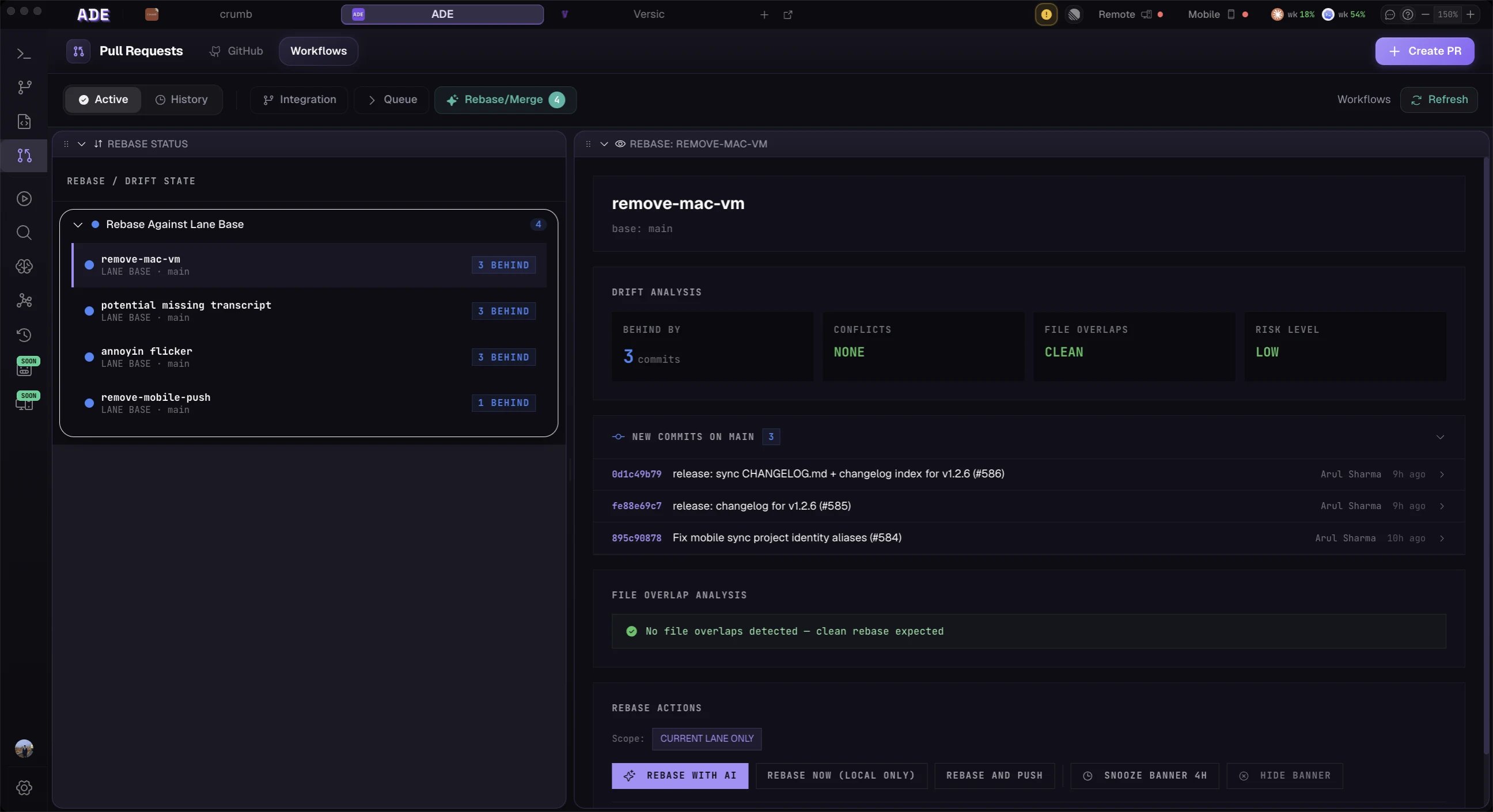
**Screenshot: The Conflicts tab in full view — left panel showing a risk matrix grid with color-coded cells, right panel showing a selected conflict with the 3-pane resolution view (Lane A on left, proposed resolution in center, Lane B on right). At least one red cell and one orange cell should be visible in the matrix.
What is the Conflicts View?
The Conflicts view is ADE’s proactive merge-safety system. Instead of waiting for agit merge to fail, ADE continuously runs merge simulations in the background using git merge-tree and surfaces predicted conflicts as soon as they are detected — often hours or days before a PR is ever opened.
Every lane in your project is continuously simulated against its base branch and against every other active lane. When the simulation finds a conflict, ADE creates a Conflict Pack, generates an AI-assisted resolution proposal, and surfaces the conflict across multiple locations in the UI: the Conflicts tab, the lane status badges, the Workspace Graph edge colors, and the PR detail view.
Predictive, Not Reactive
Conflicts are detected via simulation before any actual merge attempt. Your branches are never modified during conflict detection.
Semantic Awareness
Beyond line-level conflicts, ADE detects semantic conflicts — the same function modified in two lanes, or an API change that breaks a dependent lane.
AI-Assisted Resolution
For every detected conflict, ADE generates a proposed resolution using Claude, with a 3-pane editor for reviewing and applying it.
Conflict Indicators Reference
Conflict risk is represented by a consistent color system across every surface in ADE.Lane Status Badges
Each lane in the Lanes view carries a conflict risk badge next to its name. The badge reflects the highest-severity conflict currently detected for that lane.| Color | State | Meaning |
|---|---|---|
| Green | No conflict | No predicted conflicts with any other lane or base branch |
| Yellow | Low-impact predicted conflict | Conflict predicted, but confined to non-critical files or easily auto-resolved |
| Orange | Medium-impact predicted conflict | Conflict in shared code that requires human review to resolve correctly |
| Red | High-impact conflict or active conflict | Conflict in critical files, blocking a pending PR, or unresolvable without human intervention |
A lane with a Yellow badge does not block your workflow — it is purely informational. Orange and Red badges indicate that you should review the conflict before proceeding with integration.
Workspace Graph Edge Colors
In the Workspace Graph, edges between lane nodes (and between lanes and their base branch) use the same color scheme:- Grey: No conflict detected between these two nodes
- Yellow: Low-impact predicted conflict
- Orange: Medium-impact predicted conflict
- Red: High-impact or active conflict
PR Detail View
In the PRs tab, each PR shows a Conflict Risk badge in the Overview section. This reflects the conflict status between the PR’s source branch and its target branch at the time of last simulation.The Risk Matrix
The Risk Matrix is the top-level view in the Conflicts tab. It shows all active lanes as both rows and columns, with each cell representing the predicted conflict risk between that pair of lanes.**Screenshot: The Risk Matrix in isolation — a grid with lane names on rows and columns (at least 5×5), cells colored green/yellow/orange/red. One row should be highlighted (selected), showing that row’s conflicts are expanded in the right panel. Lane names should look realistic (e.g., “auth-refactor”, “billing-v2”, “perf-cache”, “api-cleanup”).
Reading the Matrix
- Rows represent the source lane
- Columns represent the comparison lane
- Cell color is the conflict risk level between that row/column pair (using the color reference above)
- Diagonal cells are always empty (a lane never conflicts with itself)
- The matrix is symmetric — if Lane A conflicts with Lane B, Lane B conflicts with Lane A at the same severity
Interacting with the Matrix
| Action | Result |
|---|---|
| Click a colored cell | Opens the conflict detail for that lane pair in the right panel |
| Hover a cell | Shows a tooltip: file count, conflict type, last simulation time |
| Click a lane name (row or column header) | Filters the matrix to show only that lane’s conflicts |
| Click “Simulate All” (top right) | Manually triggers an immediate simulation across all lane pairs |
How Conflict Prediction Works
Merge Simulation
ADE’s conflict engine runsgit merge-tree <merge-base> <branch1> <branch2> — a read-only operation that computes what a merge would look like without touching any branch. The result tells ADE exactly which files would conflict and what the conflicting hunks would be.
When Simulations Run
| Trigger | Scope |
|---|---|
| Every commit to any lane | All lane pairs involving the updated lane |
| New lane created | New lane vs. all existing lanes |
| Manual “Simulate All” | Full matrix |
| Scheduled — every 10 minutes | All active lanes (lanes with recent commits) |
| Before PR creation | The PR’s source branch vs. its target |
Conflict Detection Types
ADE classifies detected conflicts into three categories, shown as tags on each conflict entry:File-Level Conflicts
File-Level Conflicts
The same file was modified in both lanes, and the changes overlap at the line level. This is the standard git merge conflict —
git merge-tree detects it directly.Example: Lane A modified lines 40–55 of src/auth/session.ts. Lane B also modified lines 48–62 of the same file. The overlapping region (lines 48–55) will conflict.Semantic Conflicts
Semantic Conflicts
Two lanes modified the same function or class, but on different lines — so git would not detect a conflict, but the changes are logically incompatible. ADE uses AST analysis to detect these.Example: Lane A renamed the
authenticate(user) function to authenticateUser(user). Lane B added a new call site using the old name authenticate(user). Git merges cleanly, but the code breaks at runtime. ADE’s AST analysis catches this before merge.Dependency Conflicts
Dependency Conflicts
One lane changes an exported API (function signature, type, interface), and another lane consumes that API in a way that is no longer compatible.Example: Lane A changes
createSession(userId: string) to createSession(userId: string, options: SessionOptions) (adds a required parameter). Lane B calls createSession(userId) with no options argument. After merge, TypeScript compilation would fail.ADE traces cross-file import graphs to detect these. Dependency conflicts are labeled with the affected import path.Conflict Packs
When a conflict is detected, ADE creates a Conflict Pack — a context bundle used by both the resolution UI and any AI agent assigned to resolve the conflict. A Conflict Pack contains:- Both sides’ full diffs: What Lane A changed, what Lane B changed, relative to their merge base
- The conflicting hunks: The exact lines that clash
- Semantic context: If a semantic or dependency conflict, the relevant AST nodes and import chains
- Previous resolution attempts: Any prior resolutions (auto or manual) that were applied and subsequently invalidated by new commits
- Lane metadata: The intent of each lane (from their Lane Packs), so the resolver understands the “why” behind each change
ADE only generates a Conflict Pack when both sides of the conflict are locally available. If a lane’s worktree is not checked out on the current machine, the Conflict Pack cannot be generated and the conflict is shown as “pending context” until both sides are available.
Conflict Resolution Workflow
**Screenshot: The 3-pane resolution view for a single conflict — left pane labeled “Lane A” showing a diff with red deletions, right pane labeled “Lane B” with different changes highlighted in blue, center pane labeled “Proposed Resolution” showing the merged version with a green “Apply Resolution” button at the bottom. An AI explanation panel should be visible below the center pane.
Identify the conflict
Open the Conflicts tab. The Risk Matrix shows all conflicts. Click a colored cell (or a conflict entry in the list view) to open the conflict detail in the right panel.The right panel shows: the conflict type (file/semantic/dependency), the files involved, the two lanes involved, and the time of last simulation.
Review the details
In the conflict detail panel, click View Diff to open the 3-pane resolution view:
- Left pane — Lane A’s version of the conflicting file(s)
- Center pane — ADE’s AI-proposed resolution
- Right pane — Lane B’s version of the conflicting file(s)
Choose a resolution path
You have four options:
| Option | When to use |
|---|---|
| Accept Proposal | The AI-proposed resolution looks correct — apply it with one click |
| Edit and Accept | The proposal is mostly right but needs minor adjustments — edit the center pane inline, then apply |
| Resolve Manually | Open the file in your editor and resolve by hand |
| Resolve in External Tool | Open in your configured git mergetool for complex conflicts |
| Ask Agent to Resolve | Delegate to an AI agent with the full Conflict Pack as context |
Apply the resolution
After editing the center pane (or accepting the proposal), click Apply Resolution. ADE will:
- Write the resolved file content to the appropriate branch’s worktree
- Stage the resolved file
- Commit the resolution with an auto-generated commit message (editable before commit)
- Mark the Conflict Pack as resolved
- Update the lane status badge
AI-Assisted Resolution
The resolution proposal is generated by Claude using the full Conflict Pack as context. The model receives:- The intent of both lanes (from their Lane Packs)
- Both sides’ diffs against the merge base
- The semantic context of the conflict (AST nodes, import chains if applicable)
- Any prior resolution attempts for this conflict
- The project’s coding criteria (from the Project Pack)
Editing the Proposal
The center pane is a fully editable code editor. You can modify any part of the proposed resolution before applying it. Changes you make are persisted in the Conflict Pack as a “user-edited resolution” so that if the resolution needs to be regenerated (due to new commits), ADE shows you a diff of what changed relative to your edits.External Tool Integration
For complex conflicts, ADE defers to your configuredgit mergetool. Click Resolve in External Tool on any conflict to open the conflicting file(s) in your configured mergetool (Kaleidoscope, IntelliJ, VS Code, vimdiff, etc.).
ADE passes the three versions of the file — base, Lane A’s version, Lane B’s version — to the mergetool exactly as git mergetool would. When you save and exit the tool, ADE:
- Detects the change on the file path
- Reads the resolved content
- Marks the conflict as resolved in the Conflict Pack
- Prompts you to commit the resolution
merge.tool in your git config:
.ade/ade.yaml:
Phase 3 Orchestrator Conflict Handling
During Mission execution, ADE’s orchestrator monitors for conflicts introduced by worker agent actions in real time.**Screenshot: The Mission run panel showing an “Orchestrator Conflict Detected” banner mid-execution — one worker lane paused with an amber “Waiting” status, the conflict badge visible on that lane row, and an action prompt asking the user to resolve before the mission continues.
- The orchestrator detects the conflict via the continuous simulation cycle
- The affected worker is paused — it receives no new instructions until the conflict is resolved
- The conflict is surfaced in both the Mission run panel and the Conflicts tab
- After you resolve the conflict (via any resolution path), the orchestrator resumes the paused worker from where it left off
The orchestrator does not automatically resolve conflicts on your behalf during mission execution. Resolution always requires human approval of the proposed changes — ADE will generate a proposal and pause, but it will not apply it without your confirmation.
Conflict Prevention Tips
Keep lanes narrow in scope
The most effective way to prevent conflicts is to ensure each lane touches a minimal, well-defined set of files. Broad, sprawling lanes that modify many files across the codebase are significantly more likely to conflict. Use the Lane Pack’s “Touched files” list as an ongoing signal — if a lane is accumulating a large, diverse file set, consider splitting it.
Rebase frequently against main
Lanes that drift far from their base branch accumulate merge debt. ADE warns you when a lane is more than 10 commits behind its base. Use the Rebase action in the lane detail to pull in base branch changes regularly. This keeps your conflict surface small.
Use the Risk Matrix before starting new work
Before creating a new lane for a task, check whether any existing lane is already touching the same files. The Risk Matrix gives you a quick read on which lane pairs are the most congested. If a target file set is heavily contested, consider coordinating with the owner of the conflicting lane before you start.
Resolve conflicts early, not at PR time
Conflicts detected while a lane is still in active development are far cheaper to resolve than conflicts discovered at PR review time. ADE is designed to surface conflicts as early as possible for this reason. Make it a habit to check the Conflicts tab (or your lane badges) at the start of each work session.
Stacked lanes reduce cross-lane conflict
If Lane B builds directly on Lane A’s changes, stack it (set Lane A’s branch as Lane B’s base) rather than branching both from
main. This eliminates the Lane A / Lane B conflict entirely — Lane B is already downstream of Lane A’s changes.What’s Next
Workspace Graph
See conflict risk visualized as edge colors on the live topology of your entire project.
Pull Requests
Run integration simulations before merging and manage stacked PRs with automatic rebase.
Missions
Learn how the orchestrator handles conflicts mid-mission and coordinates multi-lane work.
Lanes
Understand how lane isolation and stacking reduce the conflict surface in the first place.