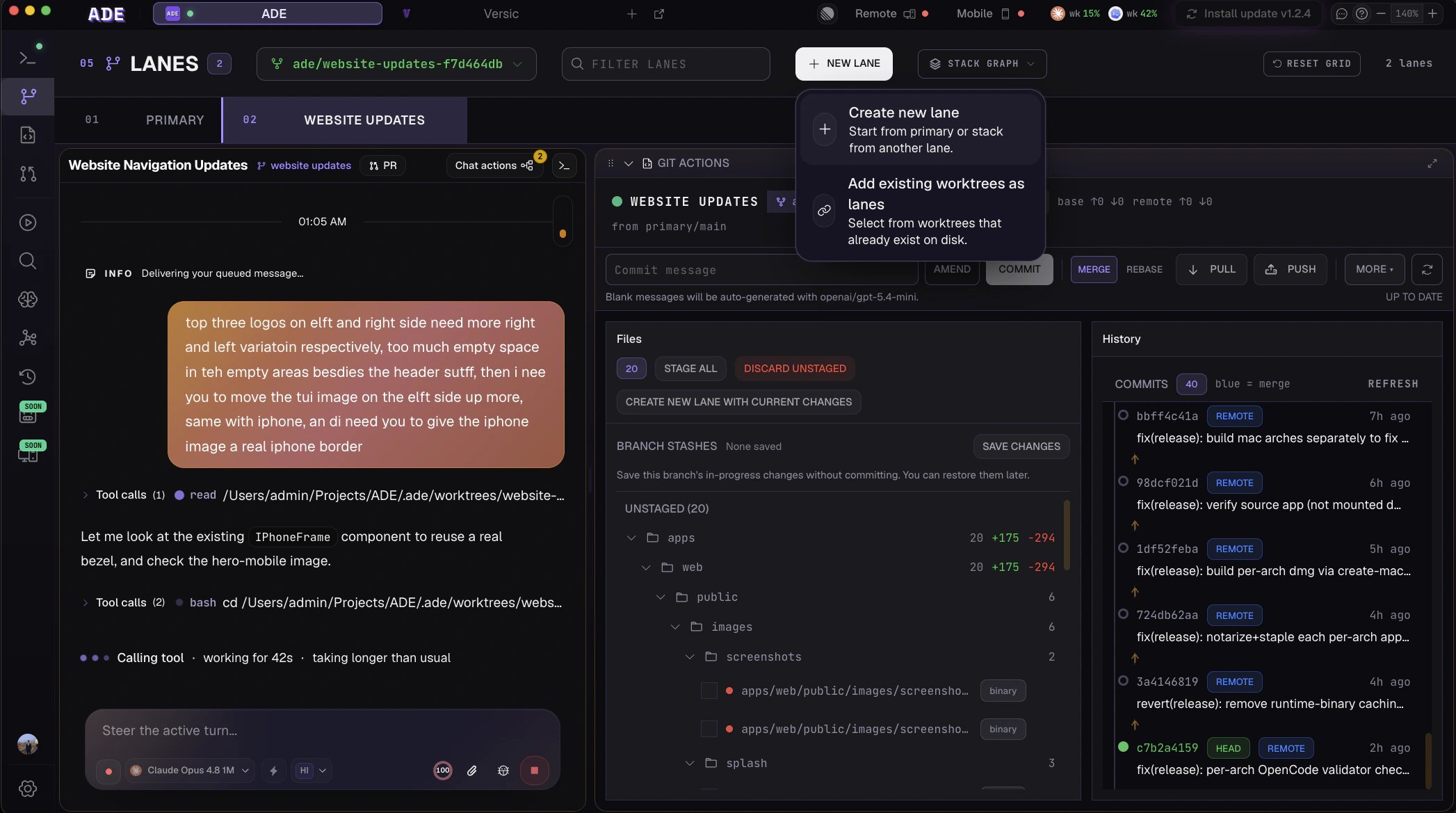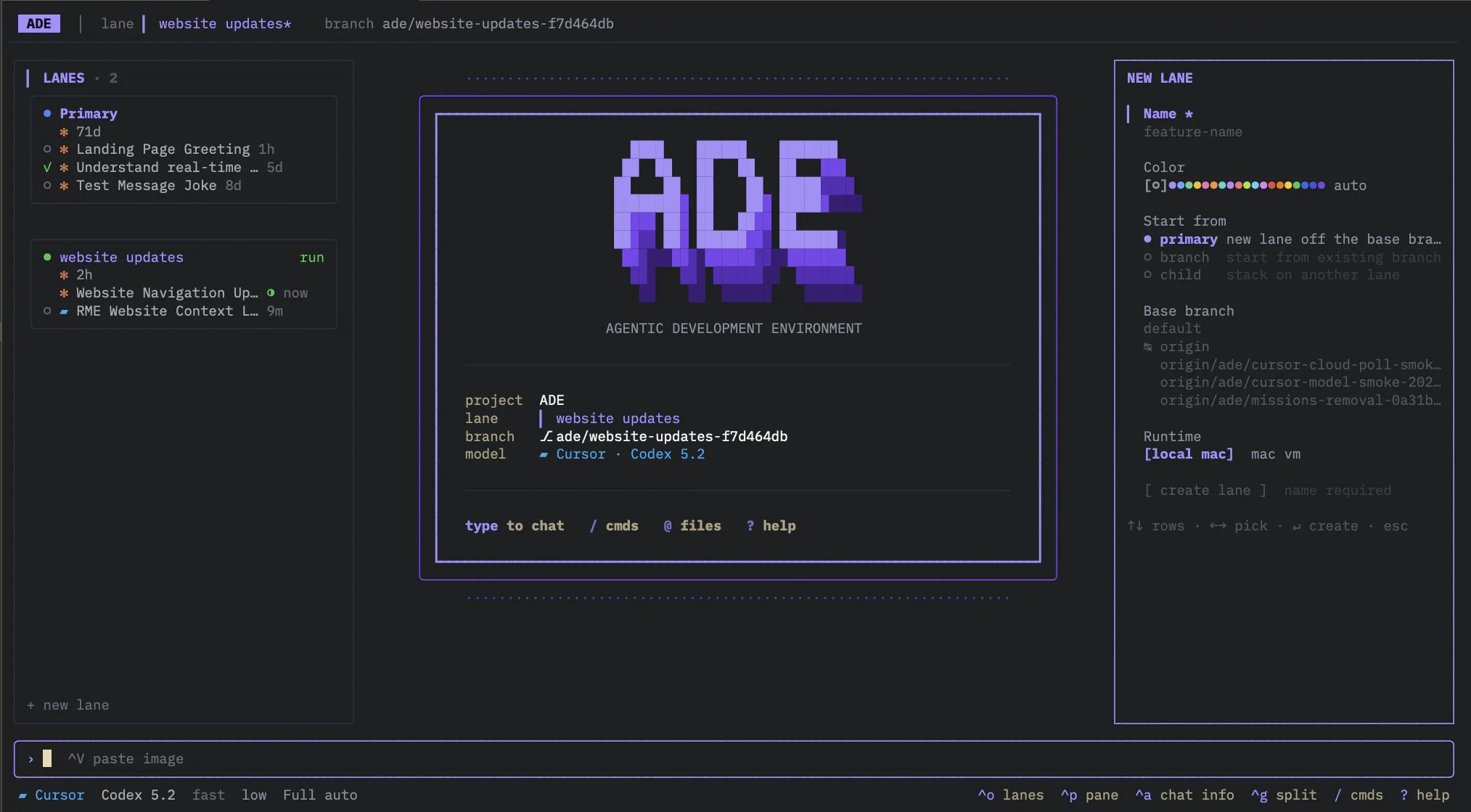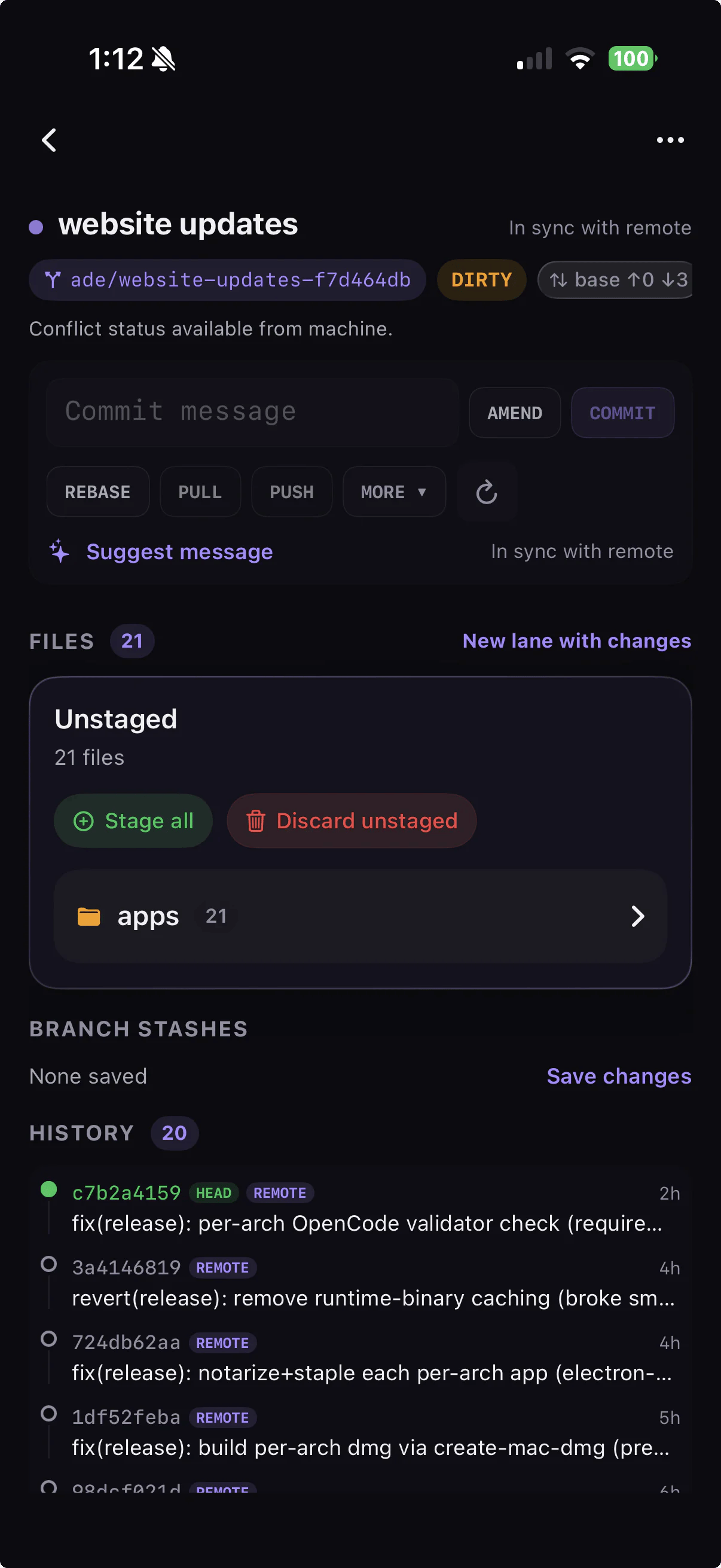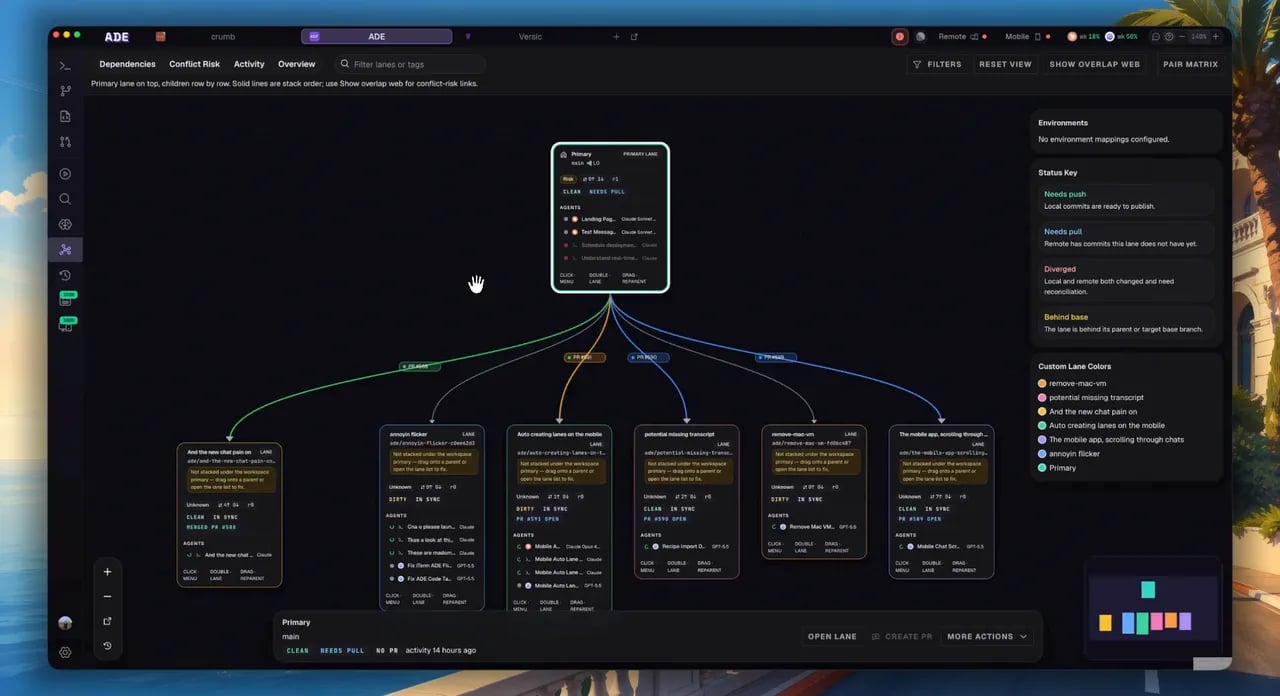
Screenshot: The full Lanes tab in 3-pane layout showing the lane list, lane detail with diff view, and the inspector pane.

What is a Lane?

A Lane wraps a git branch inside an isolated development environment. Every lane gets its own git worktree, terminal sessions, agent execution context, port allocation, and environment variables. You can run AI agents in dozens of lanes simultaneously — they will never write to each other’s files, conflict over ports, or bleed context into each other’s prompts. Lanes are what make parallel agentic development practical. Instead of a chaotic pile of branches, ADE gives you a structured, observable workspace where every stream of work is named, tracked, and contextually aware.

Isolated by Default

Each lane is a separate git worktree. File changes in Lane A are invisible to Lane B until you merge.

Context-Rich

Every lane carries a Lane Pack — a living bundle of its intent, history, and current diff — automatically injected into every agent that works in it.

Environment-Aware

Lanes get their own port allocations, environment variable overlays, and preview URLs. No port conflicts, no accidental shared state.

Lane Types

ADE supports three lane types, each suited to different workflows.
TypeLocationUse caseCan be deleted?
PrimaryMain repository directoryWorking directly in the repo root; always existsNo (can be hidden)
Worktree.ade/worktrees/<lane-name>/Standard parallel feature work; created by ADEYes
AttachedAnywhere outside .ade/Importing a worktree you created manually or in another toolYes (detaches only)
There is exactly one Primary lane per project. It points to your main repository directory — the working tree you cloned. The Primary lane is always present and cannot be deleted, only hidden from the lane list.Use the Primary lane when you need to run commands that expect to be at the repo root (e.g., certain git operations, root-level scripts), or when you are doing work that does not benefit from worktree isolation.
Agents running in the Primary lane write directly to your main working tree. Be mindful of this when running autonomous agents — prefer Worktree lanes for agent-driven tasks.
Worktree lanes are the standard choice for parallel development. When you create a Worktree lane, ADE runs git worktree add .ade/worktrees/<lane-name> <branch> and sets up the full lane environment: port lease, env overlay, startup command configuration, and initial Lane Pack generation.The worktree directory is fully self-contained: the agent working in this lane sees exactly the files on its branch, with no interleaving from other branches.
Attached lanes let you import an existing git worktree — one you created manually with git worktree add, or one that lives in a custom location outside .ade/. ADE adds it to the lane registry, generates a Lane Pack, and starts tracking its status, conflicts, and agent activity.When you delete an Attached lane from ADE, the underlying worktree directory is not removed — it is simply detached from ADE management. The branch and files remain intact.

The 3-Pane Layout

The Lanes tab uses a resizable 3-pane layout that stays consistent as you navigate between lanes.
Screenshot: Annotated 3-pane layout diagram showing the lane list, lane detail pane, and right inspector with sub-tabs.
Left pane — Lane list: All lanes in the project, filterable by status (active/ready/archived). A topology mode toggle lets you switch between flat list view, stack graph view, and workspace canvas. Each row shows the lane name, branch, type badge, status indicator, conflict risk score, dirty/clean state, and ahead/behind counts. Center pane — Lane detail: The selected lane’s full state. Includes a diff viewer (working tree, staged, recent commits), file tree toggle, quick edit capability, and in-app git operations: stage/unstage, commit/amend, stash, push, and branch management. Right pane — Lane inspector: A sub-tabbed panel with:
  • Terminals — all PTY and agent chat sessions running in this lane
  • Packs — the current Lane Pack content and freshness indicators
  • Conflicts — overlap analysis with other lanes, predicted conflict risk
  • PR — linked pull request status, checks, and quick actions

Lane Status

Every lane displays a status badge that reflects the current state of work inside it.
StatusMeaningVisual indicator
activeAn agent is currently running in this laneGreen pulsing dot
idleNo agent running; lane is ready for workGrey dot
blockedAgent is paused, waiting for human inputAmber dot
conflictMerge conflicts detected with another lane or base branchRed badge with conflict count
staleBranch is out of sync with its base branch (behind by N commits)Yellow clock icon with commit count
Click any lane with conflict or stale status to see the full conflict analysis in the right inspector’s Conflicts sub-tab. From there you can run a merge simulation, review the AI-proposed resolution strategy, or navigate directly to the Graph view for a visual diff.

Lane Health Indicators

Each lane row in the list displays a set of health indicators beyond simple status:
  • Pack freshness — how recently the Lane Pack was regenerated relative to the last commit. A stale pack icon appears if the pack is more than one session behind.
  • Conflict risk score — a 0–100 score showing the likelihood of integration conflict with the current base branch. Computed by ADE’s conflict prediction engine.
  • Uncommitted changes count — number of modified files in the working tree (shown as +N in amber).
  • Agent token usage — a progress bar showing the current agent session’s token consumption against its budget cap.

Explore Lanes

Creating & Managing Lanes

Step-by-step instructions for creating, renaming, archiving, and deleting lanes.

Lane Packs

How Lane Packs provide automatic context injection for every agent session.

Stacked Lanes

Build layered branch chains for stacked PR workflows with automatic rebase propagation.

Lane Environment

Port allocation, environment variable overlays, startup commands, preview URLs, and runtime isolation.