
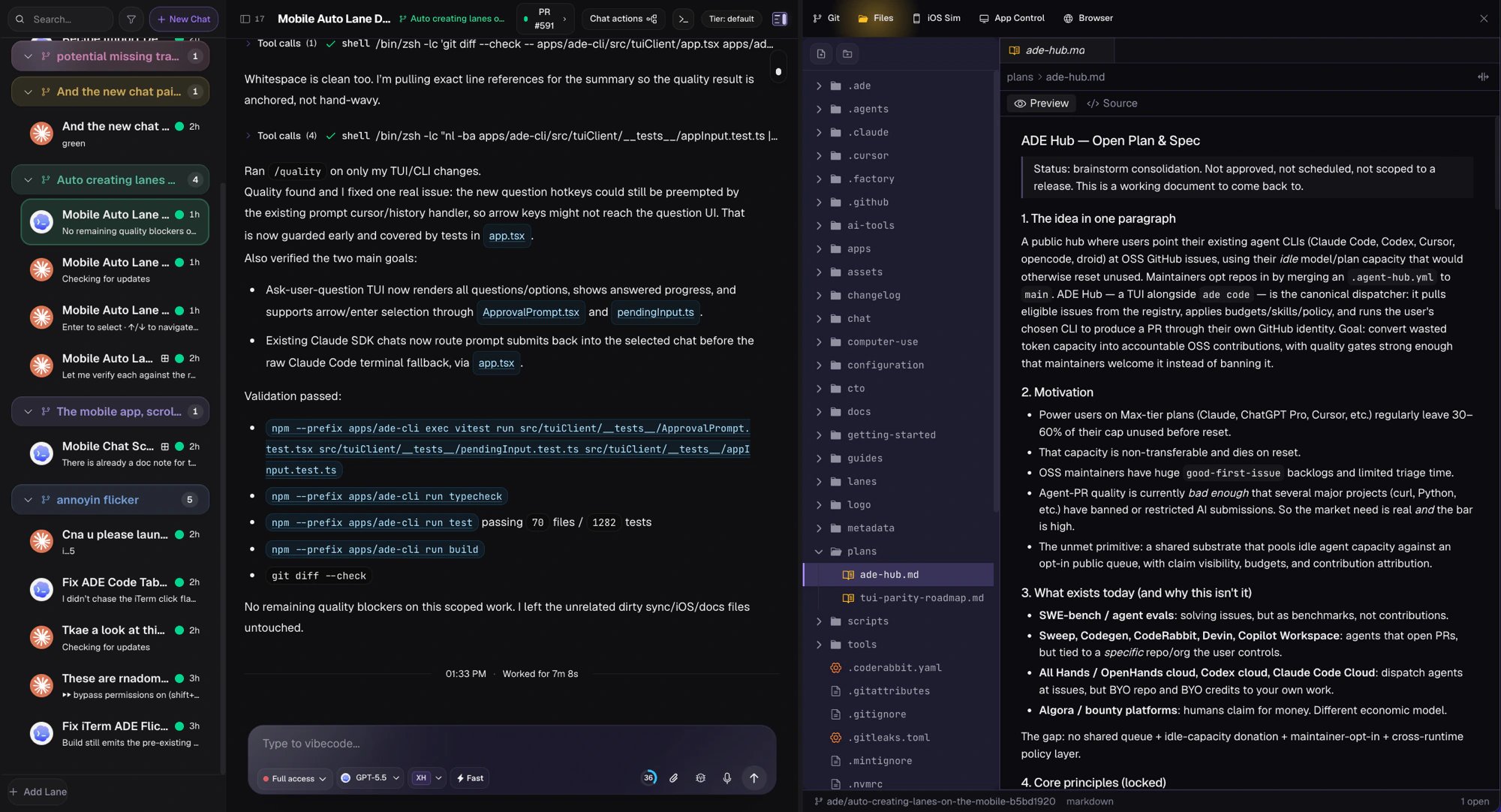
The lane's file tree, editor, and diff in one pane.
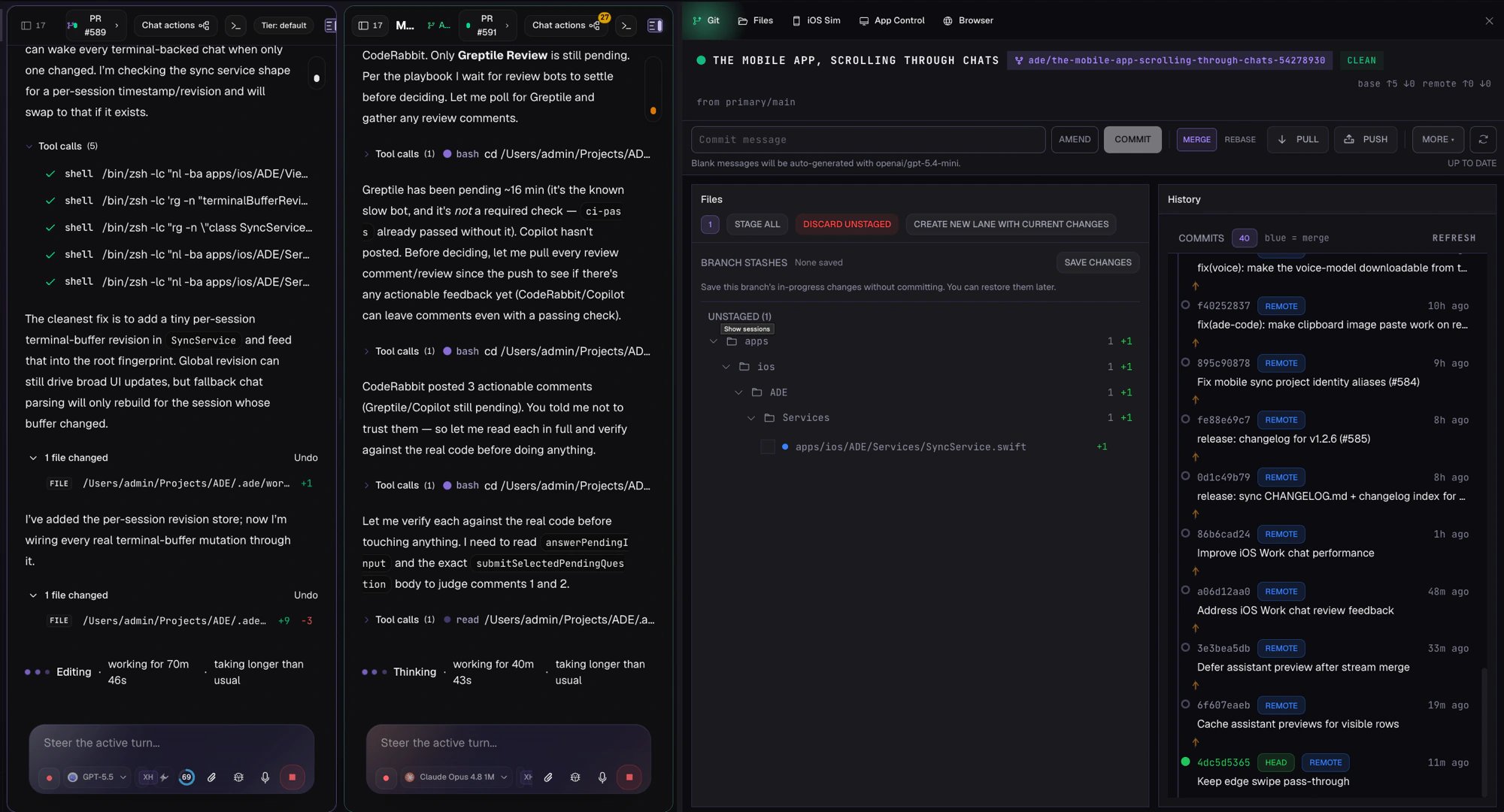
Stage, commit, stash, and push from the Git panel.
What Files is for
Inspect agent edits
Read every hunk an agent touched before it ever reaches a commit.
Make manual fixes
Open a file in Monaco and edit it directly when a small human adjustment beats another prompt.
Commit cleanly
Stage related files together, write a message, and push the lane’s branch from the Git panel.
Pick a workspace
The file tree is scoped to one workspace at a time. A workspace is a directory Files can browse, and there are three kinds:
ADE shows the active workspace name prominently so you never edit the primary checkout when you meant to edit a lane. Switching workspaces changes the tree, diffs, and Git panel together — confirm the selector before you save.
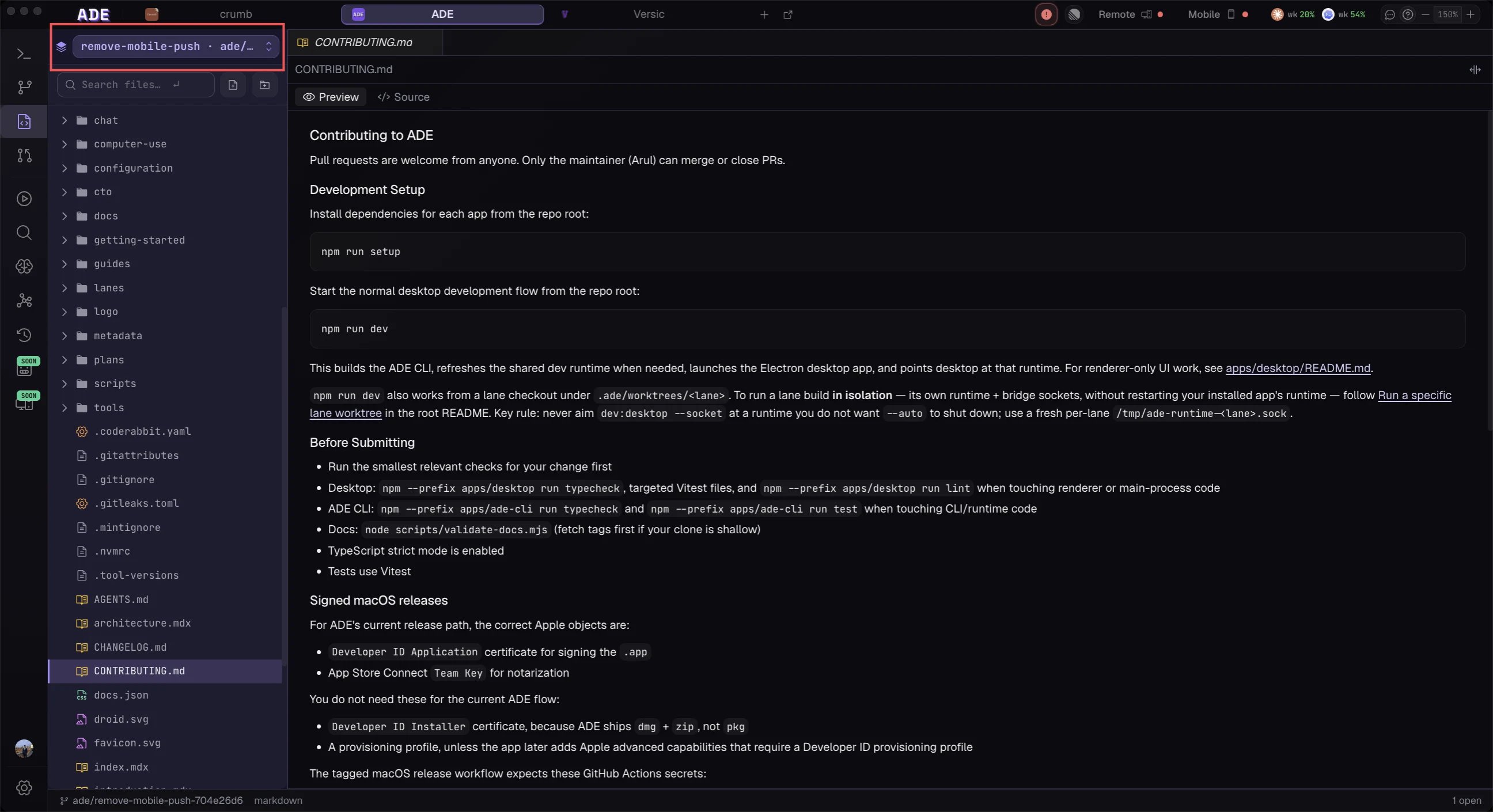
Pick the lane whose changes you want to review.
Read the diff
Open a changed file to inspect its hunks. Diffs come from a few sources — staged vs. working tree,HEAD vs. working tree, or commit-to-commit — and you can switch how they render:
- Preview for prose and markup, where you want the rendered result.
- Raw for the unified diff, where you want to read code line by line.
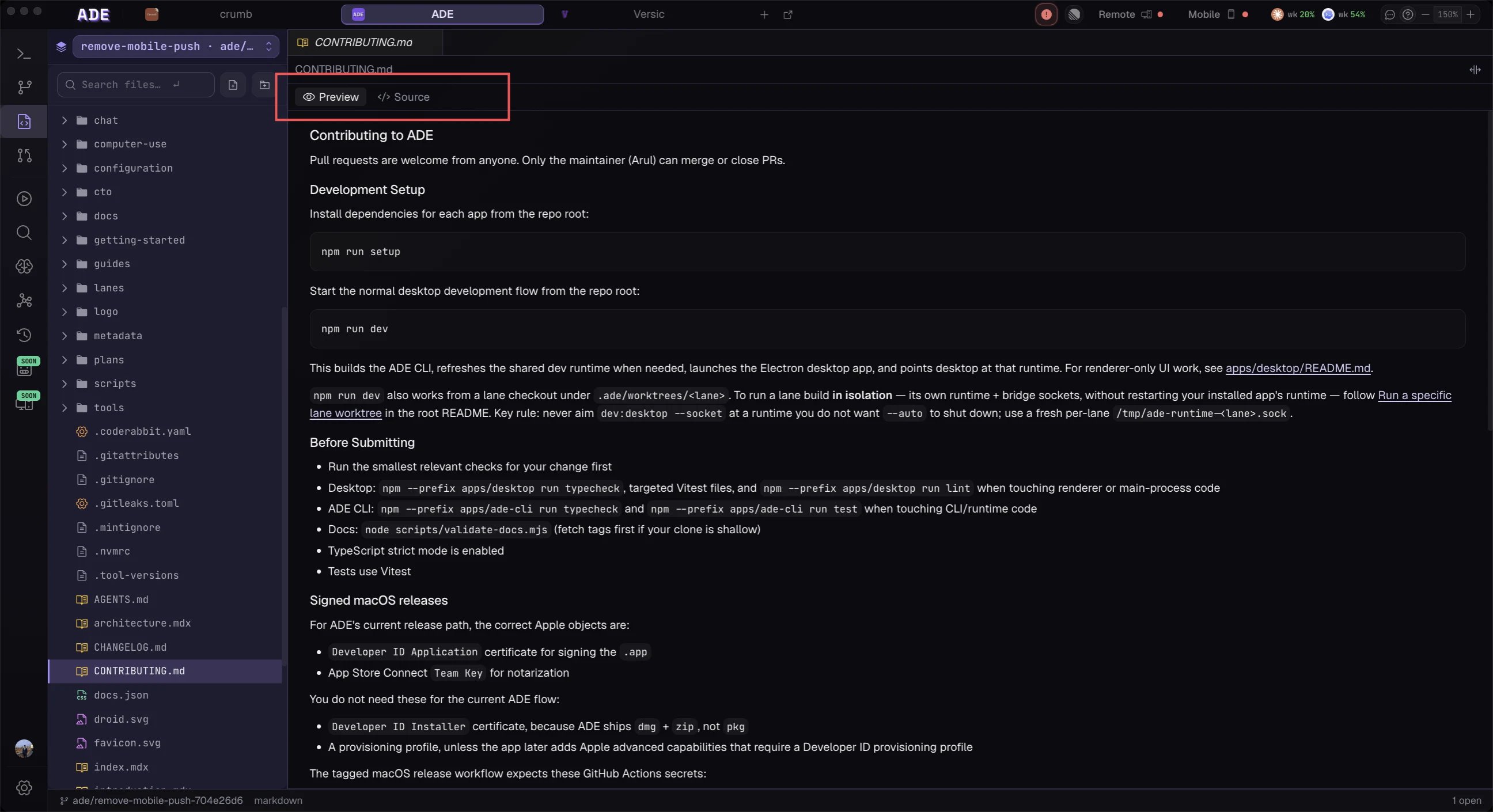
Toggle a rendered preview or the raw diff.
Edit in Monaco
Files opens in a real Monaco editor with syntax highlighting and read/write semantics. Saves are atomic — ADE writes to a temp file and renames it into place — so a dev server watching the file never catches a half-written save. Markdown files add a per-tab preview toggle that swaps the editor for a rendered view.Read-only workspaces are enforced end to end: the editor opens read-only and the create, rename, and delete controls are disabled, so you can browse a protected worktree without risking an accidental write.
Stage, commit, and push
The Git panel turns a reviewed diff into a commit. Stage related files together, write a message, stash or amend when you need to, and push the lane’s branch — all from the same surface.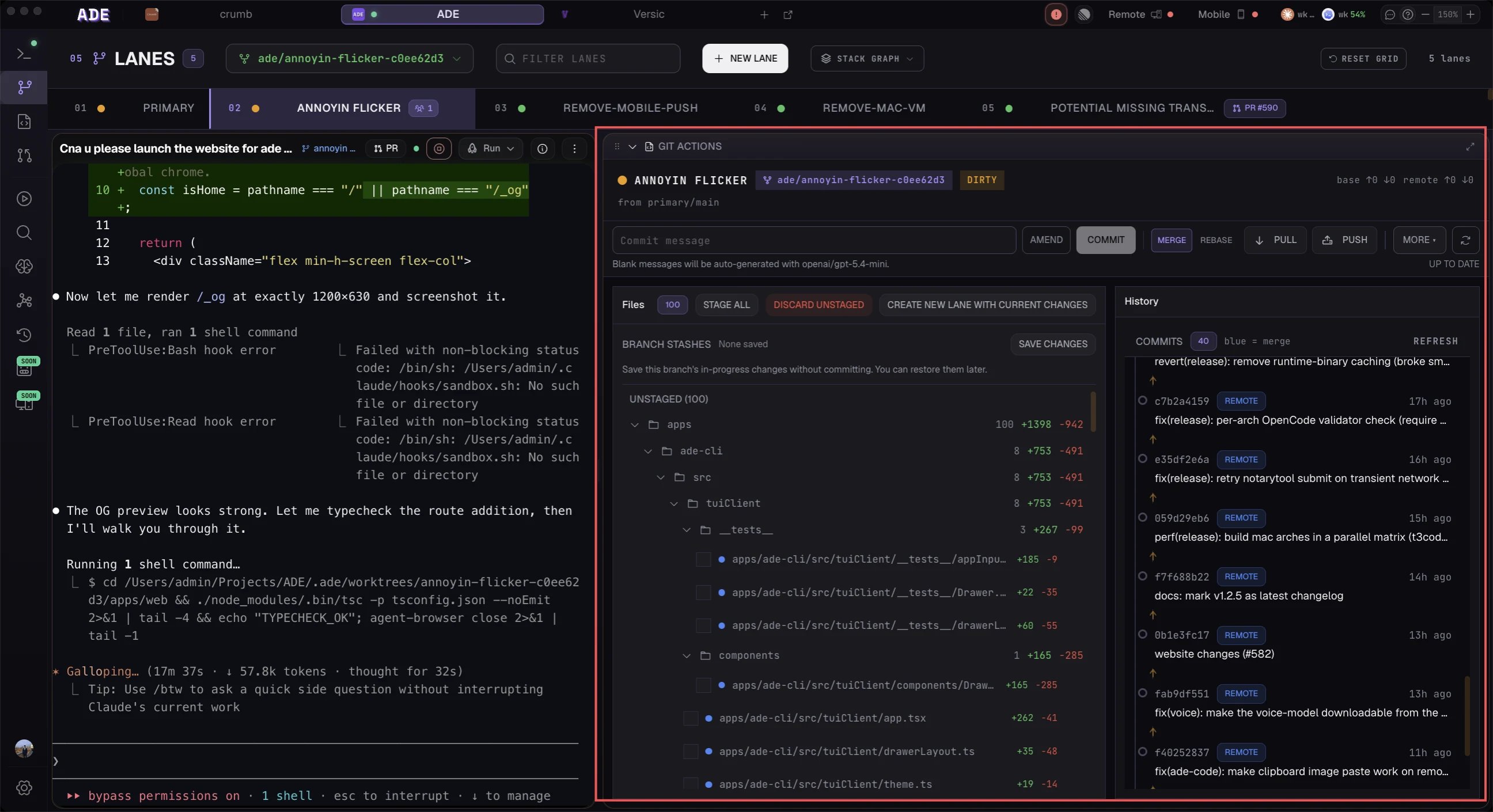
Stage, commit, and push from the Git panel.
The review flow
1
Open the changed lane
Choose the lane worktree an agent worked in from the workspace selector.
2
Read the diff
Open each modified file and inspect the hunks, raw or rendered.
3
Fix anything obvious
Edit directly in Monaco, or send the agent back with specific review notes.
4
Stage and commit
Stage related files together, commit once the work is coherent, then push.
Conflicts
When a merge or rebase produces conflicts, Files opens a three-way merge view with Base, Ours, Theirs, and Result panes, plus Accept Ours, Accept Theirs, and Accept Both actions. Resolve the file, then continue the Git operation from the lane or PR workflow. See Conflicts for the full risk model and prevention tips.Pull requests
Turn a reviewed, committed lane into a GitHub PR.
History
Trace any commit back to the lane and session that produced it.