Managing Context
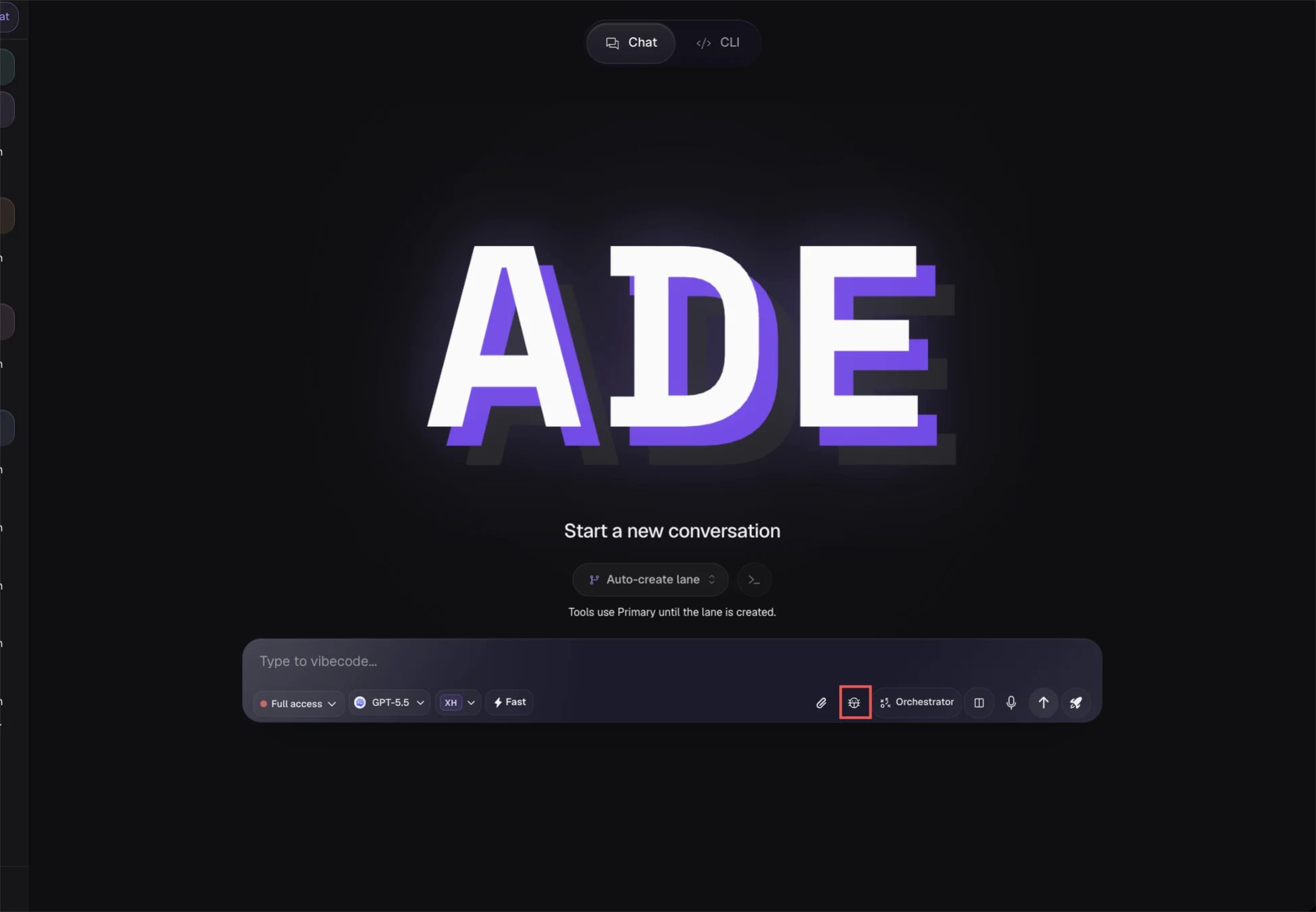
**Screenshot: Context meter in the chat header — show it at ~65% capacity with the “Compact now” suggestion tooltip visible.
- Automatic compaction
- Manual compaction
- Starting a fresh session
When the context meter reaches 70%, ADE suggests compaction. If auto-compaction is enabled (configured in Settings → Chat → Auto-compact threshold), ADE compacts automatically without prompting.Compaction summarizes older messages while preserving:
- Key decisions made in the session
- File paths and code blocks from recent turns
- Current task state and open questions
- Tool call results from the last few turns
Context Doc Preferences
ADE generates context docs (PRD, architecture overview) from your codebase to seed agent sessions with project-level knowledge. You can configure how these docs are generated in Settings > Context:- Model — choose which AI model generates the docs
- Reasoning effort — control the depth of analysis
- Auto-refresh events — select which project events trigger a doc regeneration (e.g., on commit, on PR create, on mission start)
MCP Tool Visibility and Control
The chat header shows a badge indicating how many MCP tools are active for the current session. Click it to open the MCP tool panel:- View all configured MCP servers and their available tools
- Toggle individual tool groups on or off for this session
- See which tools have been called in the current session and their call counts
MCP tool changes are session-scoped. They do not affect the lane’s default configuration. To change defaults, go to Settings → MCP Servers.
Working with Artifacts
At the end of a session (or mid-session when the agent produces notable outputs), artifacts are surfaced for your review.Artifact types produced in chat
| Artifact | When it appears |
|---|---|
| File changes | After any file write tool call |
| Screenshots | After any computer-use visual capture |
| Browser traces | After browser automation sequences |
| PR links | After a PR is created |
| Test reports | After test runner tool calls |
| Notes | When the agent explicitly attaches a note |
What you can do with artifacts
Keep — attach to lane pack
Promotes the artifact into the lane’s persistent context. Future chat sessions and missions will have access to it via context injection.
Attach to Mission / PR / Linear issue
Links the artifact to an existing Mission, opens it for attachment to a PR description, or creates a Linear issue attachment.
Chat History and Sessions
Every chat session is stored with its full transcript, tool call log, timing data, and attached artifacts. Access sessions from the History tab within a Lane view. Each entry shows:- Session start time and duration
- Message count and token total
- Model used
- Number of tool calls
- Artifacts produced
Troubleshooting
The agent is not seeing my recent file changes
The agent’s file access is always live — it reads from the filesystem at the time of the tool call. If your changes are not reflected, check:
- Are the changes saved? The agent reads saved files, not editor buffers.
- Is the agent working in the correct lane? Confirm the lane selector in the chat header.
- Ask the agent explicitly: “Re-read
src/foo.tsand tell me what you see.”
Context meter is full and compaction isn't helping
If the session context is very large (deeply nested tool call results, very long files), compaction may not free enough space. Options:
- Start a new session — previous context is preserved in History
- Ask the agent to summarize key decisions and start fresh with that summary
- Switch to a model with a larger context window in the model selector
Computer use panel is not appearing
The computer-use monitoring panel only appears when a computer-use tool is actively being invoked. If the panel is not showing:
- Confirm the session’s computer-use policy is not
CU Off - Check Settings → Computer Use to confirm a backend (Ghost OS, agent-browser) is connected
- Verify the agent’s task actually requires visual interaction — the agent will not invoke computer use for purely code-based tasks even in
CU Onmode unless a visual task is present
MCP tool calls are failing
If an external MCP tool call fails consistently:
- Open the MCP tool panel from the chat header and check the server’s status indicator.
- Go to Settings → MCP Servers and click Test connection for the failing server.
- Check the server’s logs — ADE surfaces MCP server stderr in the settings panel.
- Disable the failing tool group for the session to unblock the agent while you investigate.
The agent created a PR on the wrong branch
PR creation uses the lane’s current branch. If the agent created a PR on the wrong branch:
- Close or update the PR in GitHub directly.
- In the chat, tell the agent: “You created the PR on the wrong branch. The correct branch is
feature/xyz. Please update or re-create the PR.” - To prevent this in future sessions, use an explicit branch name when asking for a PR: “create a PR from
feature/xyztomain.”
The agent keeps calling the same tool in a loop
This usually indicates the agent is not seeing the tool’s output correctly, or the task goal is ambiguous. Try:
- Press Escape to interrupt the current turn.
- Clarify the goal: “Stop. The issue is X. I need you to Y instead.”
- If the loop continues after clarification, start a new session with a more explicit initial prompt.