
Universal tools
Every agent gets these, in every session.Read files
Range-aware file reads, plus
grep and glob search across the worktree. Always allowed, even in read-only plan mode.Edit and write files
Apply a single-file edit or create and replace a file. Each write produces a file-change event and a diff. Blocked in plan mode.
Run commands
Run shell commands for tests, builds, package managers, and scripts. Emits command events with output and exit code. Blocked in plan mode and gated by your approval in edit mode.
Search the web
Fetch a URL or run a web search when the task needs outside information. Always allowed.
Track a task list
Maintain a session todo list so multi-step work stays visible in the transcript.
Ask for input
Pause cleanly and ask you for a choice or clarification instead of guessing. The composer locks until you answer.
Workflow tools
Chat agents also get the tools that turn a conversation into shipped work.Create a lane
Branch a fresh git worktree for a new piece of work, optionally stacked on the current lane.
Open a PR
Create a pull request from the lane’s changes, with a generated title and body.
Resolve PR issues
When a chat is launched to fix a PR, it can refresh checks, re-run failed CI, reply to review threads, and resolve them.
Capture proof
Screenshot the environment and file the result to the proof drawer (macOS), or attach an existing image with
ade proof attach.Report completion
Persist a structured closeout — status, summary, artifacts, and any blocker — as a card in the transcript.
Attach Linear
When Linear is connected, a chat can read a linked issue’s context; attaching an issue links it back to the lane and the next PR body.
The exact set depends on the session: writes and commands are gated by the permission mode, screenshot capture needs a supported platform, and Linear tools appear only when the integration is connected. The CTO additionally gets operator tools (spawning chats, lanes/PRs/git/tests, durable memory, and Linear reads and updates) that regular chats never see.
Provider-specific support
Some capabilities depend on the provider runtime behind the chat.Codex goals
Codex sessions can keep a visible goal that you set, update, complete, or clear from ADE without turning the goal into prompt text.
Scheduled work
Every chat runtime can schedule durable self-resume with
chat.createScheduledWork; wake, cron, and background events stay inspectable in the transcript and Chat Info.Provider recovery
Codex and Cursor runtime failures surface as structured recovery cards or errors instead of collapsing into silent transcript gaps.
History handoff
Claude and Codex sessions can be imported or forked into ADE when provider-native history is available, then continued as lane-scoped chats.
See what an agent can reach
Open the tools panel from the composer to see what a session has available and which actions need your approval before they run.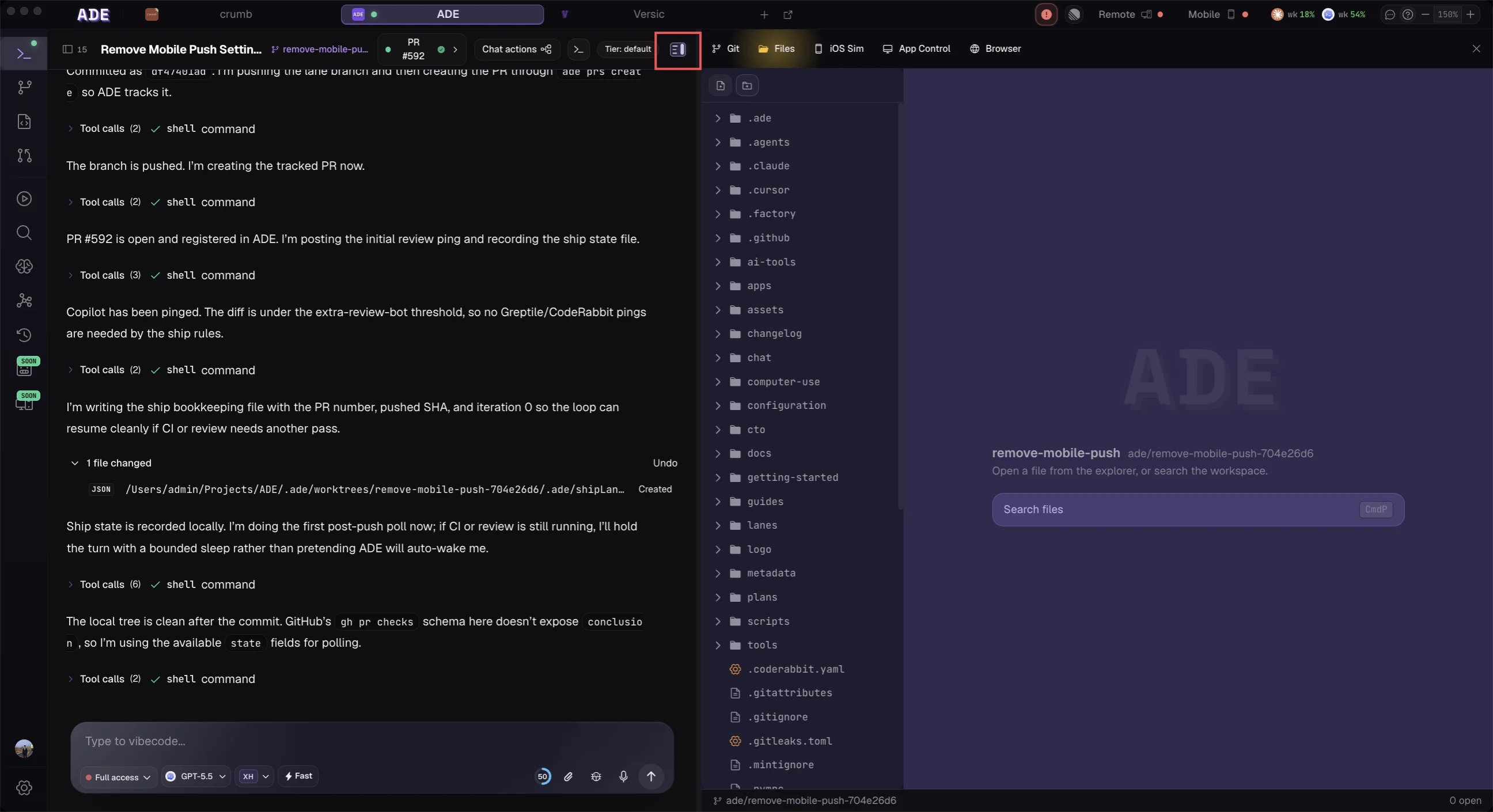
Open the tools the agent can use.
The right agent for the tool
Capabilities are shared across providers, but the model still matters. Pick the provider and model that suits the task when you start the session — a fast model for a small fix, a stronger one for a gnarly refactor — and switch within the same family mid-session.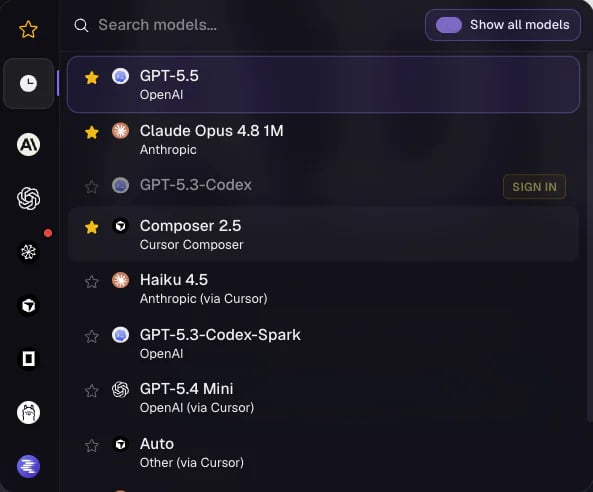
Pick the agent and model that fits the work.
Good chat requests
Specific, verifiable asks get better results than open-ended cleanup.Review before trusting
Agent chat is powerful because it changes real files. Treat the result like any contribution: inspect the diff in Files, run the relevant checks, and read the closeout summary before you commit or merge.Context and artifacts
What’s in context, and how to keep a session focused.
Files & diffs
Read, stage, and resolve the changes an agent makes.