Documentation Index

Fetch the complete documentation index at: https://ade-app.dev/docs/llms.txt

Use this file to discover all available pages before exploring further.

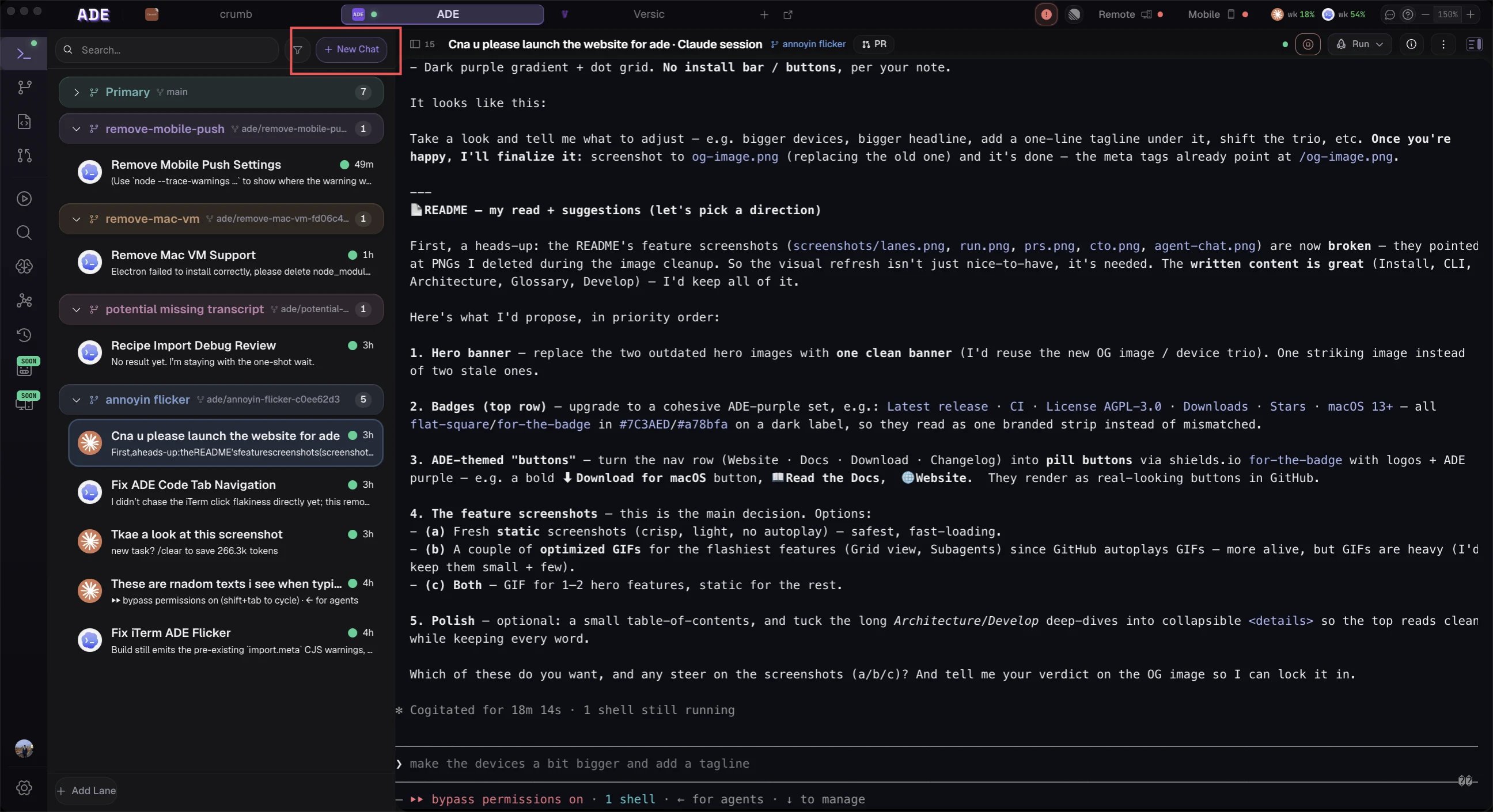
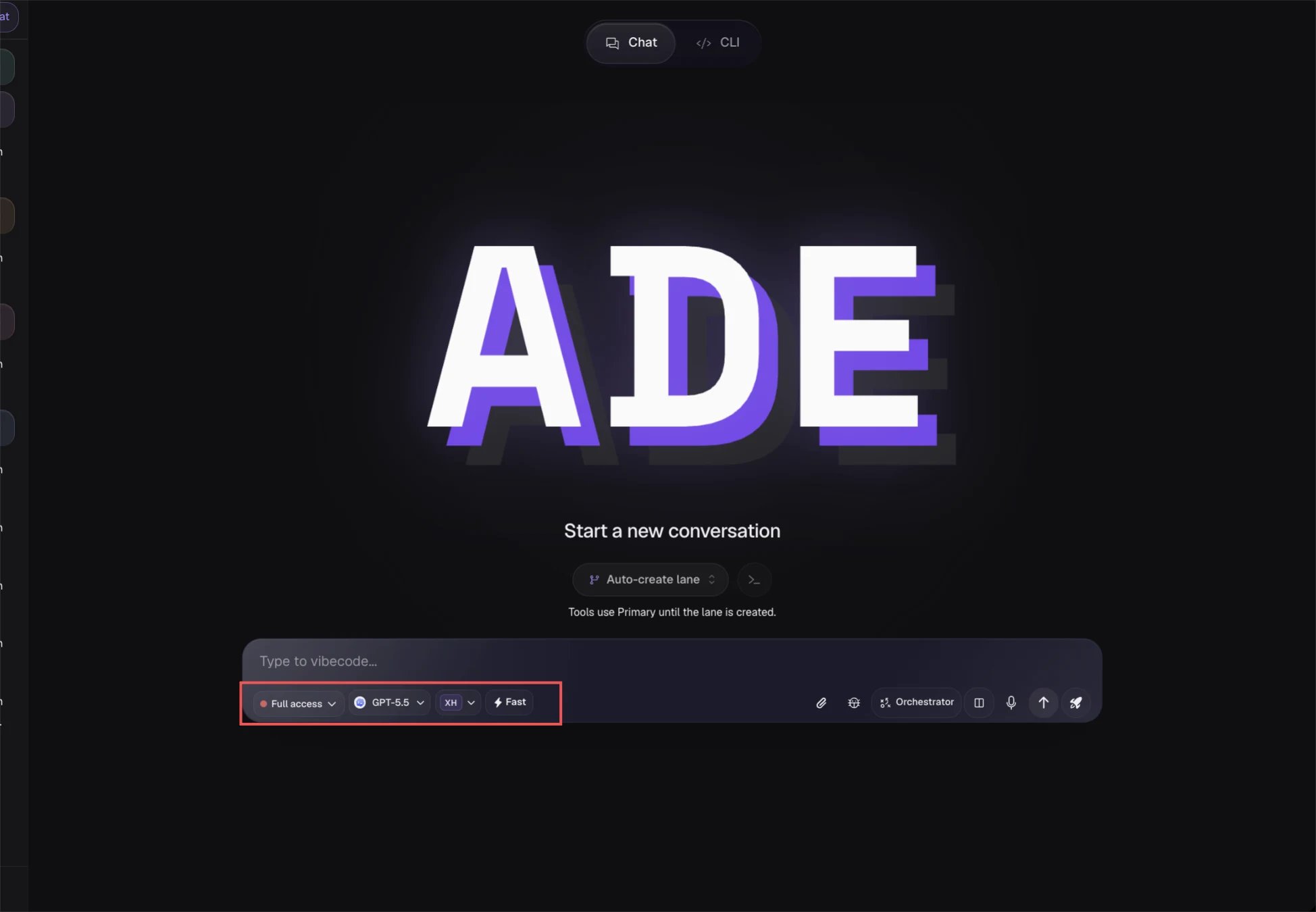
You have a lane ready. Now it is time to run an agent in it. ADE offers two paths depending on the scope of the task.

Two good first paths


First prompt to try

For your first agent task, use something narrow enough to verify the full loop but broad enough to exercise the core workflow:
Add a GET /health endpoint that returns { "status": "ok" } and add one test for it.
Other good first prompts:
  • "Add a TypeScript type for UserPreferences with name (string), theme (light | dark), and notifications (boolean)."
  • "Write a utility function that validates email addresses and add 3 unit tests for it."
  • "Update the README with a Getting Started section that explains how to install dependencies and run the dev server."

What to expect during your first session

Context injection: ADE prepends the Lane Pack before the agent sees your message — so the agent already knows the project structure, lane intent, and recent file state. Tool calls: The agent reads files, writes code, and runs commands via ADE CLI tools. Each call appears as an expandable block in chat. No per-call permissions required in the default config. Session recording: Every message and tool call is captured in the session transcript, viewable in the History tab. Interrupting: Press Escape or click Stop at any time. The agent reports partial results and the conversation continues.

After your first task

Once you have verified the result:
1

Review the diff

Open the Files view scoped to your lane. Check every changed file. The side-by-side diff makes it easy to spot issues.
2

Commit the changes

If the changes look correct, commit them. You can:
  • Ask the agent: “Commit these changes with a descriptive message”
  • Use the git operations bar at the bottom of the Files view
  • Use the terminal in the lane to run git commit manually
3

Create a PR (optional)

Ask the agent: “Create a PR for this work” — or use the lane’s PR action in the right inspector. ADE pre-fills the PR title and description from the Lane Pack.

Troubleshooting your first run

Check that at least one AI provider is configured and verified in Settings > AI Providers. A green indicator means the provider is ready. If the provider shows a red indicator, verify your API key.
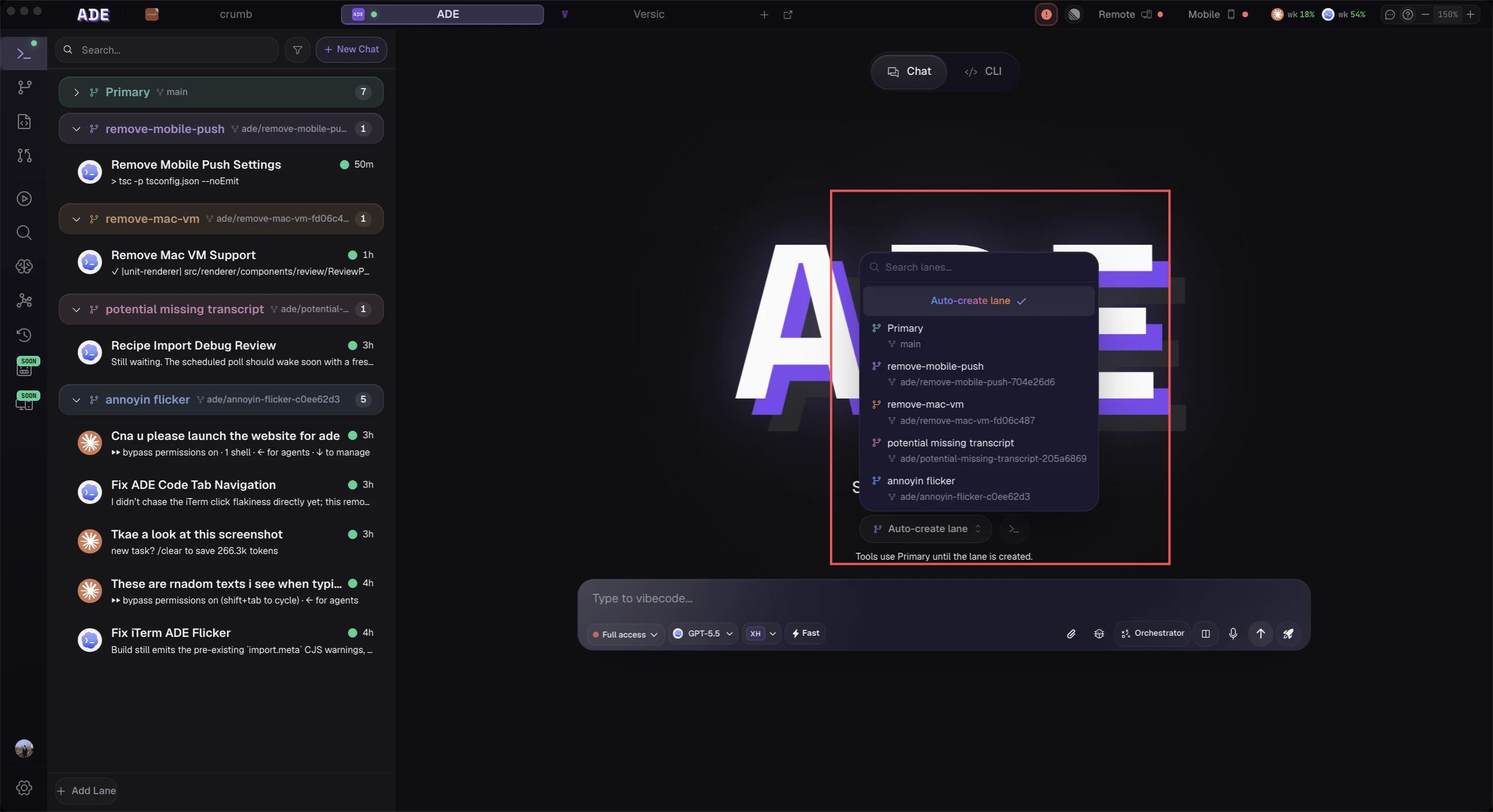
Verify you are in the correct lane — check the lane selector in the chat header. If the agent is in the Primary Lane, it writes to your main working directory. Create a Worktree Lane for agent-driven tasks.
This is normal for a first run, especially on complex codebases. The Lane Pack may not have captured all relevant context. Try:
  1. Tell the agent what failed: “The tests are failing with this error: [paste error]”
  2. The agent will read the error and attempt a fix
  3. If it still fails, provide more context about your project’s testing setup
Check the token usage indicator in the chat header. If the agent is consuming tokens but not producing visible output, it may be reading large files. Press Escape to interrupt, then try a more focused prompt.

Next steps

Key Concepts

Understand every core concept in ADE: Lanes, Packs, Missions, the CTO, Automations, and more.

Chat Capabilities

See the full list of what the chat agent can do — file operations, git, PRs, missions, and more.

Missions

Learn how to configure multi-step missions with planning, validation, and cost tracking.

Multi-Agent Setup

Run parallel agents across multiple lanes and monitor them from the Workspace Graph.