> ## Documentation Index
> Fetch the complete documentation index at: https://ade-app.dev/docs/llms.txt
> Use this file to discover all available pages before exploring further.
# Install ADE
> Install ADE with one command on macOS, Linux, or Windows, or download the desktop app. Add the iOS companion from TestFlight and run in guest mode with no account.
ADE is a native desktop app, a headless engine, and an iOS companion. It is generally available on macOS, in beta on Windows 10/11 x64, and runs headless on Linux. The fastest path on every platform is one command.
 ## Install from your terminal
```bash macOS & Linux theme={null}
curl -fsSL https://ade-app.dev/install.sh | sh
```
```powershell Windows theme={null}
irm https://ade-app.dev/install.ps1 | iex
```
This installs the **brain** — ADE's always-on engine. The script downloads a self-contained runtime binary, verifies it against the published `SHA256SUMS`, and stages it under `~/.ade`, rolling back if anything fails. There is no Node, npm, or other prerequisite.
It then registers the brain as a per-user background service, offers to sign you in with [`ade connect`](/docs/getting-started/connect-machine), and — on macOS and Windows — offers to install the desktop app too.
| Platform | Background service |
| -------- | ---------------------- |
| macOS | launchd login service |
| Linux | systemd user service |
| Windows | Per-user startup entry |
None of them need an administrator or elevated shell.
On macOS and Linux the installer does **not** edit your shell profile. It installs `ade` to `~/.ade/bin` and prints the line to add — put that directory on your `PATH` to run `ade` from a new shell. The Windows installer adds its directory to your user `PATH` for you (pass `-NoPath` to skip that).
When no terminal is attached — CI, or a provisioning script — the installer skips its prompts and prints the follow-up commands instead. `ADE_INSTALL_NO_PROMPT=1` (or `-NoPrompt` for `install.ps1`) opts out explicitly. You can always run `ade connect` later.
## Or download the app
Download for [**Apple Silicon**](https://ade-app.dev/download/mac-arm64) (M1 and later) or [**Intel**](https://ade-app.dev/download/mac-x64), then drag **ADE.app** into `/Applications` and launch it. If macOS asks for confirmation, choose **Open**.
The app is signed and notarized, and keeps itself current from then on.
```bash theme={null}
brew install --cask arul28/ade/ade
```
This taps the ADE cask and installs the latest macOS build into `/Applications`. Update later with:
```bash theme={null}
brew upgrade --cask ade
```
Download the [**signed Windows installer**](https://ade-app.dev/download/windows) for Windows 10/11 x64.
It is a per-user NSIS installer: no administrator rights, and it installs the app, the `ade` CLI, `ade code`, and the background ADE brain into your user profile. Read [ADE on Windows](/docs/getting-started/windows) for the capabilities that differ from macOS.
There is no ADE desktop app for Linux, and none is needed. Install the brain with the one-liner above on any x64 or arm64 box, connect it to your account, and drive it from ADE on your Mac, Windows PC, phone, or the web.
See [Connect a machine](/docs/getting-started/connect-machine) for the full server workflow.
Open [TestFlight](https://testflight.apple.com/join/ZSdJGKPy) on your iPhone and install ADE Mobile. Sign in with the same account to see your machines automatically, or pair directly from the desktop **Mobile** control.
Want the brain binary directly, without piping a script? Download it for [`darwin-arm64`](https://ade-app.dev/download/brain/darwin-arm64), [`darwin-x64`](https://ade-app.dev/download/brain/darwin-x64), [`linux-arm64`](https://ade-app.dev/download/brain/linux-arm64), [`linux-x64`](https://ade-app.dev/download/brain/linux-x64), or [`win32-x64`](https://ade-app.dev/download/brain/win32-x64).
## Requirements
macOS on Apple Silicon or Intel, shipped as a signed, notarized app. Windows is in beta, x64 only — see [ADE on Windows](/docs/getting-started/windows). Linux runs the brain headless on x64 and arm64.
Required — ADE uses branches and worktrees to run lanes.
Needed to run agents. Connect it after launch — guest mode lets you explore first.
## Launch and explore
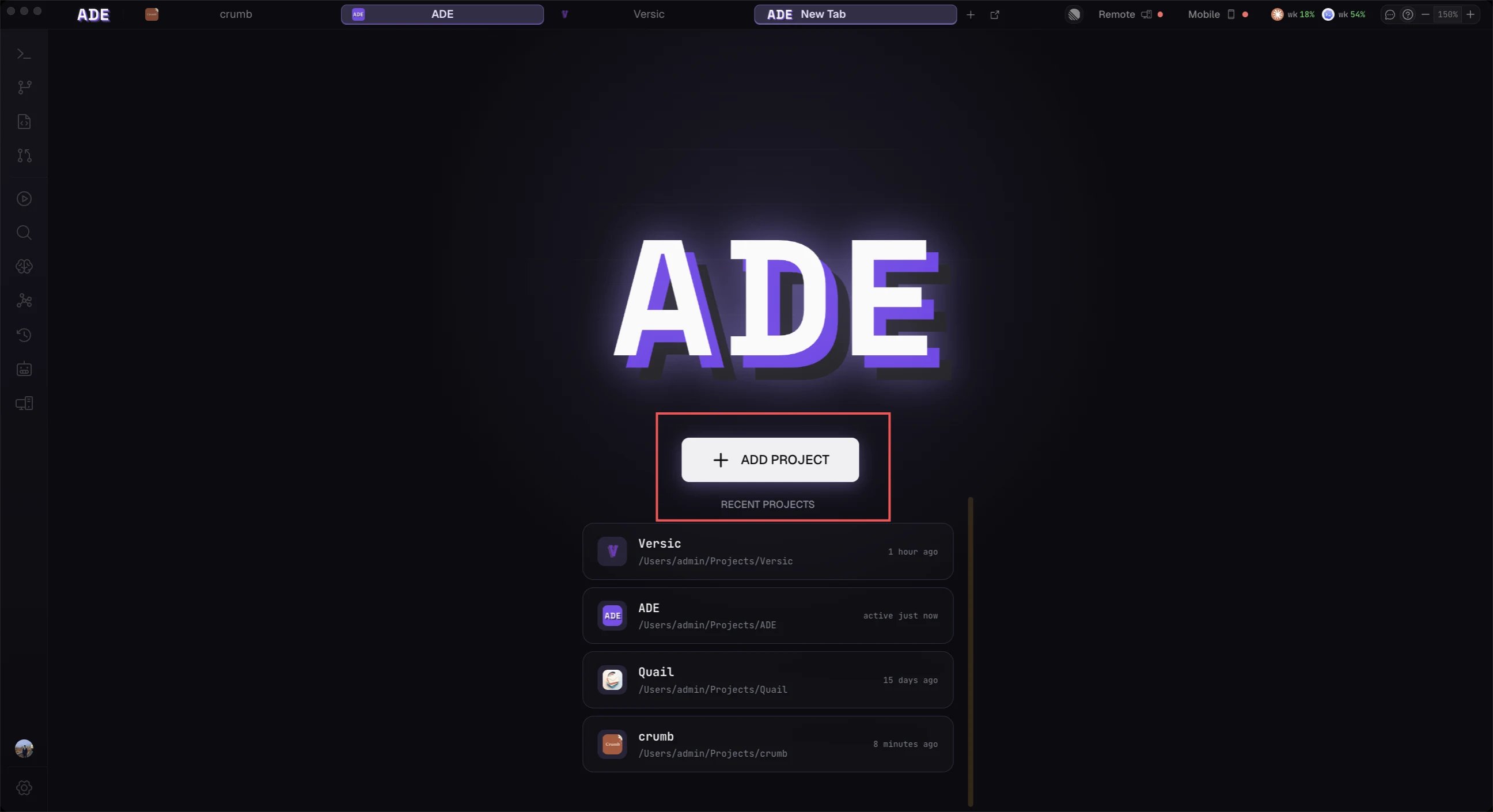
Open ADE and you land on the welcome screen. ADE starts in **guest mode** — no sign-up, no account — so you can add a repository and look around right away. Connect a provider whenever you're ready to run agents.
ADE keeps itself current with a built-in auto-updater: it downloads new releases in the background and applies them on relaunch. Installed via Homebrew? Run `brew upgrade --cask ade` instead.
macOS is the generally available desktop platform. Windows 10/11 x64 is in beta: the app, brain, and CLI all run, but native OS computer use, the iOS Simulator drawer, and the Notch are macOS-only. [ADE on Windows](/docs/getting-started/windows) lists every difference. The iOS companion is available through TestFlight.
## Next
Put this machine on your account — or run the brain on a Linux server.
Add Claude Code, Codex, Cursor, Factory Droid, or OpenCode.
Point ADE at the Git repository you want it to manage.
## Install from your terminal
```bash macOS & Linux theme={null}
curl -fsSL https://ade-app.dev/install.sh | sh
```
```powershell Windows theme={null}
irm https://ade-app.dev/install.ps1 | iex
```
This installs the **brain** — ADE's always-on engine. The script downloads a self-contained runtime binary, verifies it against the published `SHA256SUMS`, and stages it under `~/.ade`, rolling back if anything fails. There is no Node, npm, or other prerequisite.
It then registers the brain as a per-user background service, offers to sign you in with [`ade connect`](/docs/getting-started/connect-machine), and — on macOS and Windows — offers to install the desktop app too.
| Platform | Background service |
| -------- | ---------------------- |
| macOS | launchd login service |
| Linux | systemd user service |
| Windows | Per-user startup entry |
None of them need an administrator or elevated shell.
On macOS and Linux the installer does **not** edit your shell profile. It installs `ade` to `~/.ade/bin` and prints the line to add — put that directory on your `PATH` to run `ade` from a new shell. The Windows installer adds its directory to your user `PATH` for you (pass `-NoPath` to skip that).
When no terminal is attached — CI, or a provisioning script — the installer skips its prompts and prints the follow-up commands instead. `ADE_INSTALL_NO_PROMPT=1` (or `-NoPrompt` for `install.ps1`) opts out explicitly. You can always run `ade connect` later.
## Or download the app
Download for [**Apple Silicon**](https://ade-app.dev/download/mac-arm64) (M1 and later) or [**Intel**](https://ade-app.dev/download/mac-x64), then drag **ADE.app** into `/Applications` and launch it. If macOS asks for confirmation, choose **Open**.
The app is signed and notarized, and keeps itself current from then on.
```bash theme={null}
brew install --cask arul28/ade/ade
```
This taps the ADE cask and installs the latest macOS build into `/Applications`. Update later with:
```bash theme={null}
brew upgrade --cask ade
```
Download the [**signed Windows installer**](https://ade-app.dev/download/windows) for Windows 10/11 x64.
It is a per-user NSIS installer: no administrator rights, and it installs the app, the `ade` CLI, `ade code`, and the background ADE brain into your user profile. Read [ADE on Windows](/docs/getting-started/windows) for the capabilities that differ from macOS.
There is no ADE desktop app for Linux, and none is needed. Install the brain with the one-liner above on any x64 or arm64 box, connect it to your account, and drive it from ADE on your Mac, Windows PC, phone, or the web.
See [Connect a machine](/docs/getting-started/connect-machine) for the full server workflow.
Open [TestFlight](https://testflight.apple.com/join/ZSdJGKPy) on your iPhone and install ADE Mobile. Sign in with the same account to see your machines automatically, or pair directly from the desktop **Mobile** control.
Want the brain binary directly, without piping a script? Download it for [`darwin-arm64`](https://ade-app.dev/download/brain/darwin-arm64), [`darwin-x64`](https://ade-app.dev/download/brain/darwin-x64), [`linux-arm64`](https://ade-app.dev/download/brain/linux-arm64), [`linux-x64`](https://ade-app.dev/download/brain/linux-x64), or [`win32-x64`](https://ade-app.dev/download/brain/win32-x64).
## Requirements
macOS on Apple Silicon or Intel, shipped as a signed, notarized app. Windows is in beta, x64 only — see [ADE on Windows](/docs/getting-started/windows). Linux runs the brain headless on x64 and arm64.
Required — ADE uses branches and worktrees to run lanes.
Needed to run agents. Connect it after launch — guest mode lets you explore first.
## Launch and explore
Open ADE and you land on the welcome screen. ADE starts in **guest mode** — no sign-up, no account — so you can add a repository and look around right away. Connect a provider whenever you're ready to run agents.
ADE keeps itself current with a built-in auto-updater: it downloads new releases in the background and applies them on relaunch. Installed via Homebrew? Run `brew upgrade --cask ade` instead.
macOS is the generally available desktop platform. Windows 10/11 x64 is in beta: the app, brain, and CLI all run, but native OS computer use, the iOS Simulator drawer, and the Notch are macOS-only. [ADE on Windows](/docs/getting-started/windows) lists every difference. The iOS companion is available through TestFlight.
## Next
Put this machine on your account — or run the brain on a Linux server.
Add Claude Code, Codex, Cursor, Factory Droid, or OpenCode.
Point ADE at the Git repository you want it to manage.